Connecting to Data Sources
How to Add a Data Source?
1 Make sure that you are connected via the internet and logged into TURBOARD as a Super Admin user with admin permissions.
2 From the “Data Sources” section under the Navigation Sidebar Menu, click + Create a New Datasource icon to open the “Create a New Datasource” overlay window.
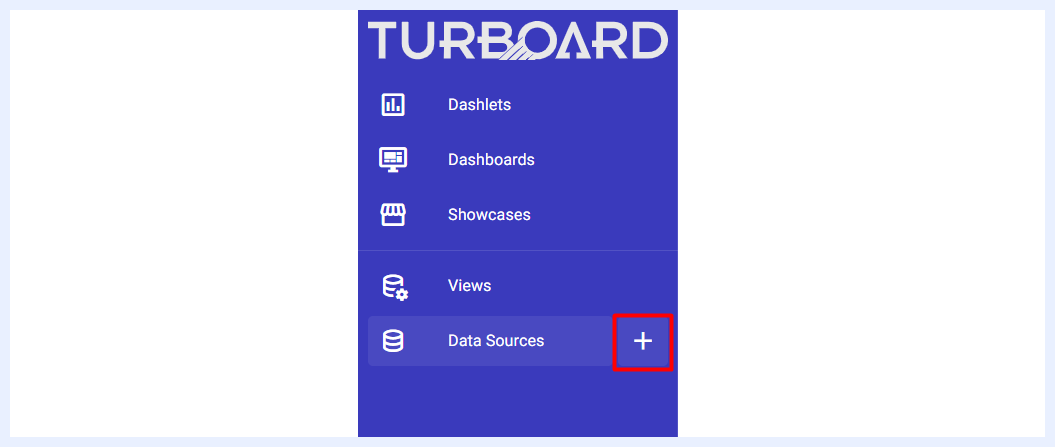 Data Sources – Add New
3 Select (click on) the database that you will connect to, then fill the required information in the related fields:
- Alias: give a name to the new data source.
- Provide the connection properties and authentication information: database name, server host, port, username, password, etc.
- Activate caching for this database connection: checked by default so that the data of the dashlets that will be created from this data source will be cached. This will prevent unnecessary queries to be sent to the database and will enhance the overall performance. Unless the data in the database is updated within short periods of time and instantly changes and you want to continuously query the database, keep this check box checked.
- Use SSH Tunnel: for added security, you may want to use an SSH tunnel to connect to your database. This is especially useful when connecting to a remote server or when your database is behind a firewall. To enable this, simply check the 'Use SSH Tunnel' option. You'll then need to enter additional details such as the IP address or host name, port, username, and SSH password.
4 Click CREATE button.
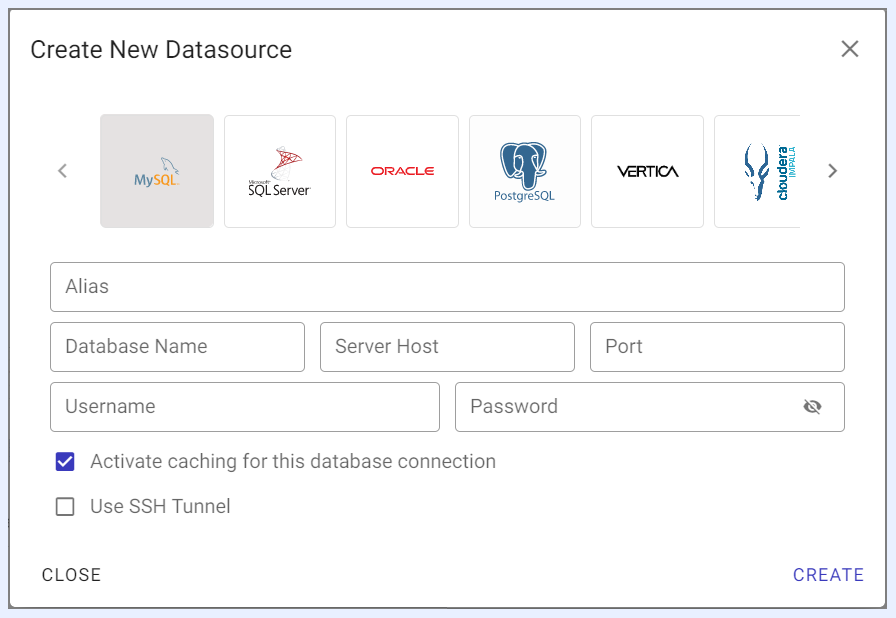 “Add New” Data Source Window
Note
Upon clicking CREATE button, the connecting process will start automatically and its completion time may vary depending on the schema size of the database.
5 Once the connecting process is completed, the relationships between the tables in the data source are automatically detected and made available under the “CONNECT TABLES” tab.
6 Go to “CONNECT TABLES” tab and select the data tables that you want to connect to from their list, then click Add Selected Table/s icon.
7 The added data tables will be automatically listed under “CONNECTED TABLES” tab and ready to be used for creating “Views”.
Note
Only Super Admin users can add new data sources to TURBOARD, while both Admin and Designer/Editor users can edit, delete and manage the data tables of an added/existing data source.