Introduction to Views
What is a View in TURBOARD Terminology?
In TURBOARD, a “View” is a curated dataset specifically prepared for analysis and visualization. It serves as an intermediary layer between the raw data sources and the final dashlets (charts, maps, graphs, or infocells) that present the analyzed data.
Views are essential for transforming raw data from various sources into a structured format suitable for analysis. This transformation process includes customizing data selection, applying filters, and performing calculations to meet specific analytical needs.
Why Prepare Views?
The preparation of views is crucial for several reasons:
1 Reduce the Burden on Data Sources: By aggregating and processing data within the view, TURBOARD minimizes the need to repeatedly query the original data source, thereby reducing the load and potential performance impact on the source system.
2 Speed Up Analysis: Aggregated and processed data allows for faster analysis, as the view contains pre-processed information that can be quickly accessed and visualized in dashlets.
3 Optimize Data Storage: Instead of storing or analyzing all the original data, TURBOARD focuses on the relevant subset, ensuring efficient use of storage and computing resources.
By carefully aggregating and processing data, TURBOARD ensures that views provide a balanced and efficient foundation for analysis, without overloading the data source or causing delays in query execution.
For a deeper understanding of the performance optimizations and data handling strategies employed in TURBOARD, you may read this blog for more details on how TURBOARD's advanced data management features enhance both the efficiency and the effectiveness of your business intelligence solutions.
Options TURBOARD Offers to Prepare Your Views
When creating a new view in TURBOARD, you are presented with three main options depending on the source from which you wish to fetch and prepare the data.
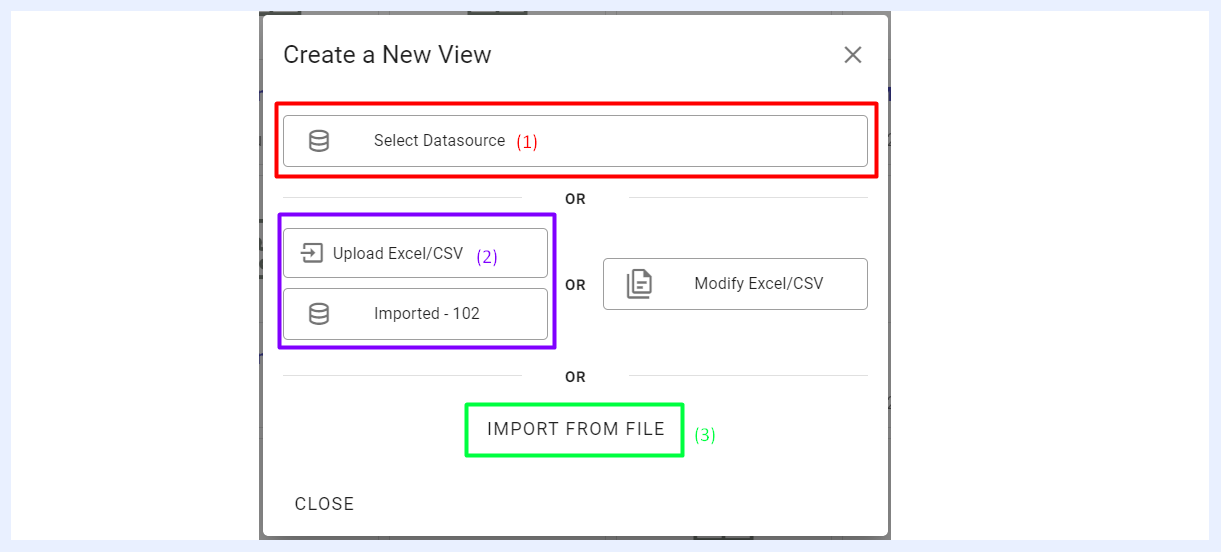 Create New View Overlay Window
Creating a View From a Connected Database
If the dataset you wish to prepare is sourced from a connected database, select the desired source from the “Select Datasource” dropdown menu. This displays all the data sources that have been configured and added to TURBOARD.
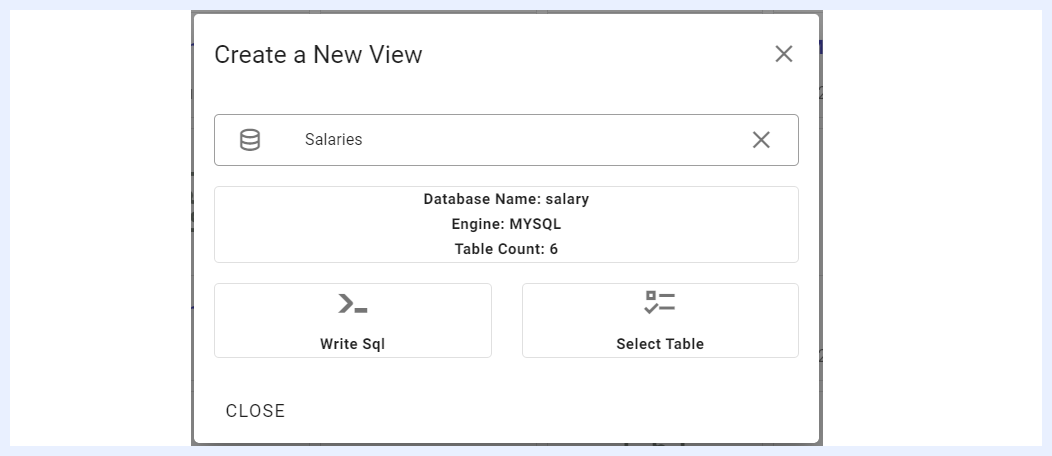
Upon selecting the desired database, two options will become available in the “Create a New View” overlay window:
- Write SQL: This option allows you to craft an SQL query to fetch the data from the selected datasource. The result of the query is stored in TURBOARD’s database (MariaDB or Vertica is the default database included with the TURBOARD installation).
- Select Table: This option allows you to fetch and prepare your view directly from the connected tables of the selected datasource.
Creating a View From an Excel/CSV File
- Upload Excel/CSV: If you need to generate analysis and visualizations from an Excel/CSV file, you can select the datasource into which it will be imported, then upload the desired file.
- Modify Excel/CSV: Use the “Modify Excel/CSV” dropdown for views that were initially created from an Excel or CSV file to either update the view—which is necessary if the original file has changed—or to adjust its attributes.
Duplicating a View From Another TURBOARD View
If you want a view that mirrors another from a different data source, you can use the “IMPORT FROM FILE” button.
Differences When Creating a View from Different Options
| View Creation Option | Description & Usage | Query Execution | Data Refresh Policy |
|---|---|---|---|
| From a connected datasource through Select Table option | Used for direct data access from connected databases without intermediate storage. Ideal for real-time data analysis and immediate access. | Original Database | If caching is enabled and the data is available and up-to-date in the cache, it is used directly; otherwise, queries are sent to the original database to refresh the data. |
| From a connected datasource through Write Sql option | Suitable for custom data handling scenarios where SQL queries are used to fetch and process data before analysis or visualization. | Column-Store DB in TURBOARD Docker | The frequency of data refresh is set at the query interface, which can be adjusted based on operational needs. This setup, part of TURBOARD’s periodical batch connection strategy, schedules batch data retrievals to efficiently manage the data load on the source, optimizing system performance and reducing database strain. |
| From an Excel/CSV file through Upload Excel/CSV option | Ideal for situations where data is static and updated periodically from Excel/CSV files. Useful for data outside the primary management systems. | Column-Store DB in TURBOARD Docker | Data is refreshed whenever the file is reloaded - through the Modify Excel/CSV option. This is suitable for data sources that do not require real-time updates, such as periodic reports or historical data analysis. |
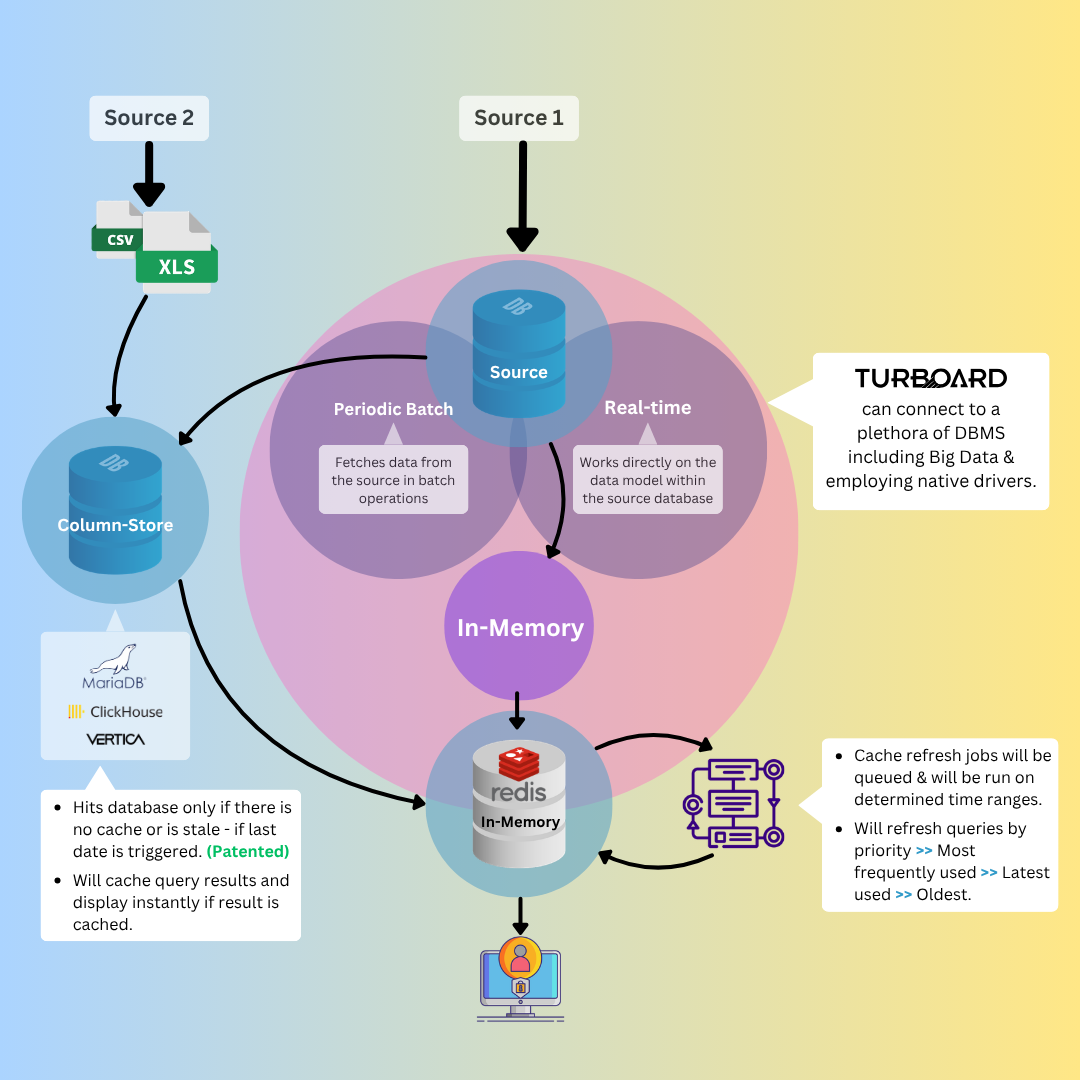
The diagram above depicts TURBOARD’s approach to data connectivity, showcasing how data from two sources ‒ Excel/CSV files and a connected database ‒ is handled. Excel/CSV files are imported directly into TURBOARD’s Column-Store, such as Elasticsearch, Vertica, or Snowflake, where data is cached and displayed instantly if already present, or fetched from the database if the cache is stale. Data from original databases can be connected in real-time, directly interacting with the source, or through periodical batch processes that store data for batch analysis. Both methods utilize Redis In-Memory for caching, optimizing data retrieval through scheduled cache refresh jobs prioritized by usage frequency and recency, ensuring efficient data management and speedy access.