Creating Showcases
A “Showcase” is a powerful feature that allows for the easy sharing of multiple dashboards as one unit. It is especially useful for businesses and organizations that need to provide a comprehensive view of data to their end-users.
Designer users can create, design and customize showcases that are well-suited to the requirements of their analysis and are visually engaging and informative to the end-users who will be using them.
Showcase Properties
With a showcase, end-users can:
- Easily navigate between different dashboards, which are grouped hierarchically for greater clarity.
- One of the key features of a showcase is the ability to display dashboards with different theme options, providing a customized and personalized experience for users.
- Additionally, filters can be easily moved between dashboard transitions, allowing for greater flexibility and control.
- The showcase also comes with two different navigation displays, ensuring that end-users can choose the most suitable option for their needs.
- Furthermore, a showcase is easy to embed, making it a convenient and accessible tool for sharing data and insights with others.
- Users can mark any showcase as a Favorite for one-click access. Favorited showcases appear in a dedicated section of the main navigation menu.
How to Create a Showcase?
1 Go to Showcases > click + Create New Showcase.
2 Give a proper name to the showcase in the overlay window that opens.
3 Optionally, you may add a “Description” to the showcase.
4 Optionally, you may add a “Tag” in the relevant field. Tags are useful for organizing and searching for content, as they allow you to quickly filter and find items that have been labeled with the same tag. When you label showcases with specific keywords or terms, it will help find those showcases grouped upon “Search” in their view listing main page.
5 Click CREATE button. A new window will open to start adding dashboards to your new showcase.
6 Click Add Dashboard Or Menu button and select:
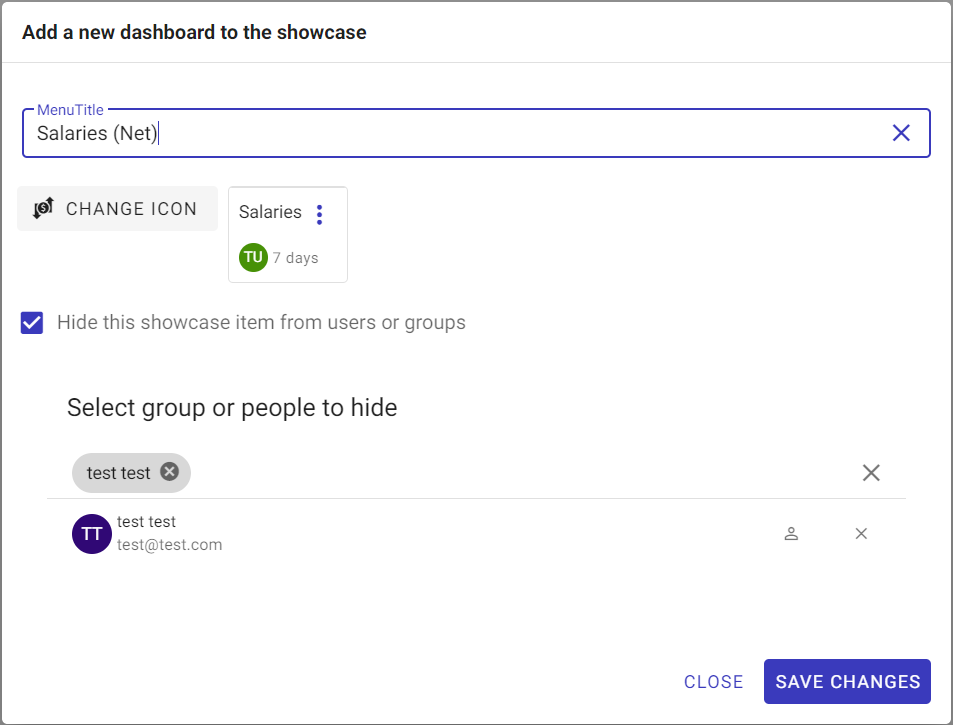
Add Dashboardblue icon: when selected, an overlay window will open listing all the dashboards shared with the user in which the user can select one dashboard to be added to the showcase. ClickADDbutton after selecting the required dashboard.- You can change the name of the dashboard on the dashboard menu display while its main title will remain the same on the dashboard itself.
- You can assign an icon to the dashboard menu display.
- You can hide the dashboard from specific users and/or groups.
OR alternatively,
Add Menublue icon: when selected, an overlay window will open to allow the user to create a drop-down menu and list/group several dashboards under it or even other sub-menus with several dashboards under each.