Managing Data Sources
When a new data source is added and its data tables are connected to TURBOARD, it will be listed under “All Datasources” left-side menu. You may at any time click on it to open the “Edit” mode in order to manage its settings, add more data tables or delete some, and/or customize the relationships between the connected data tables, etc.
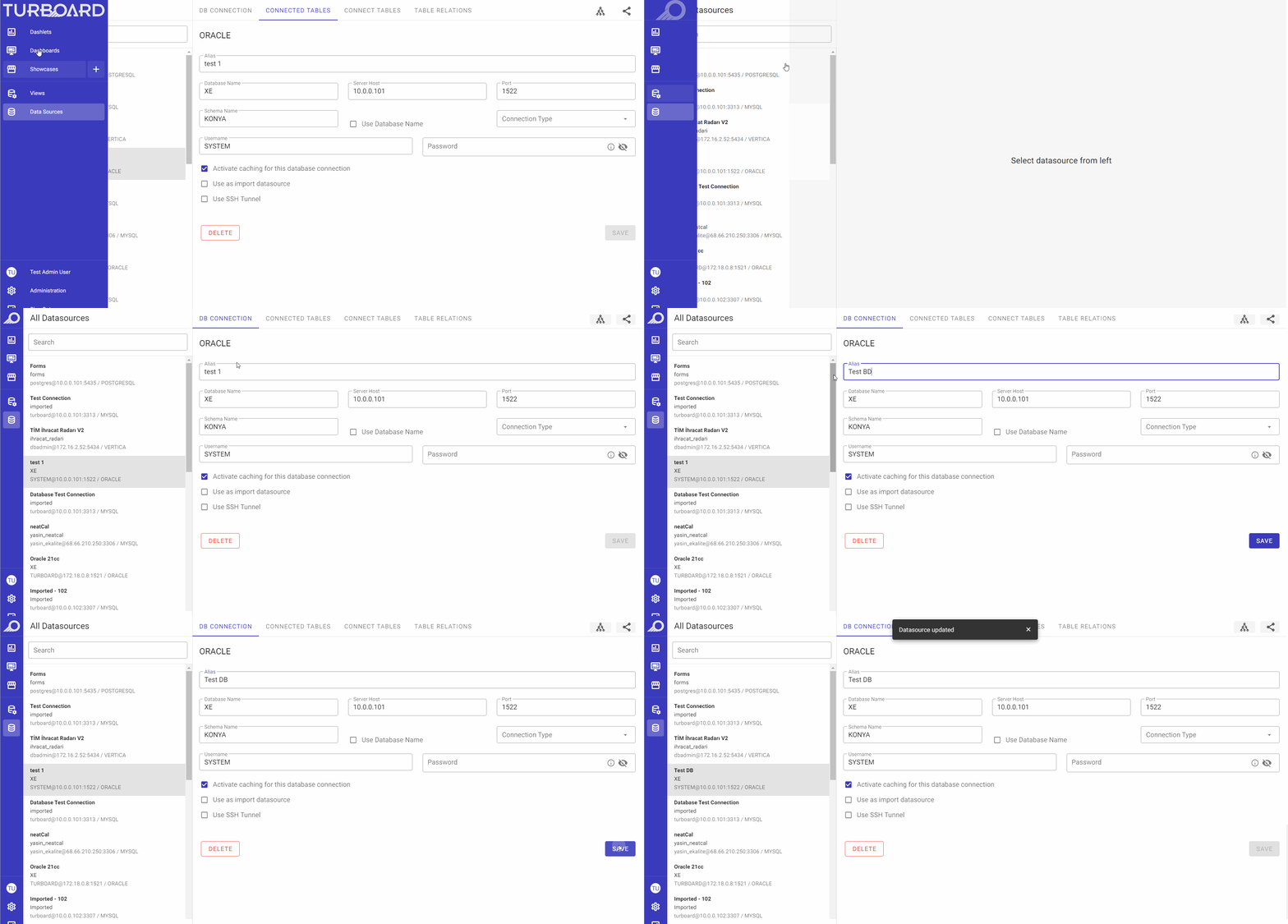
“DB CONNECTION” Tab
From this tab, you can:
- Update the DB login and access credentials (if changed),
- Edit the name of the data source connection (Alias),
- Change caching settings,
- Delete the data source connection from TURBOARD.
“CONNECTED TABLES” Tab
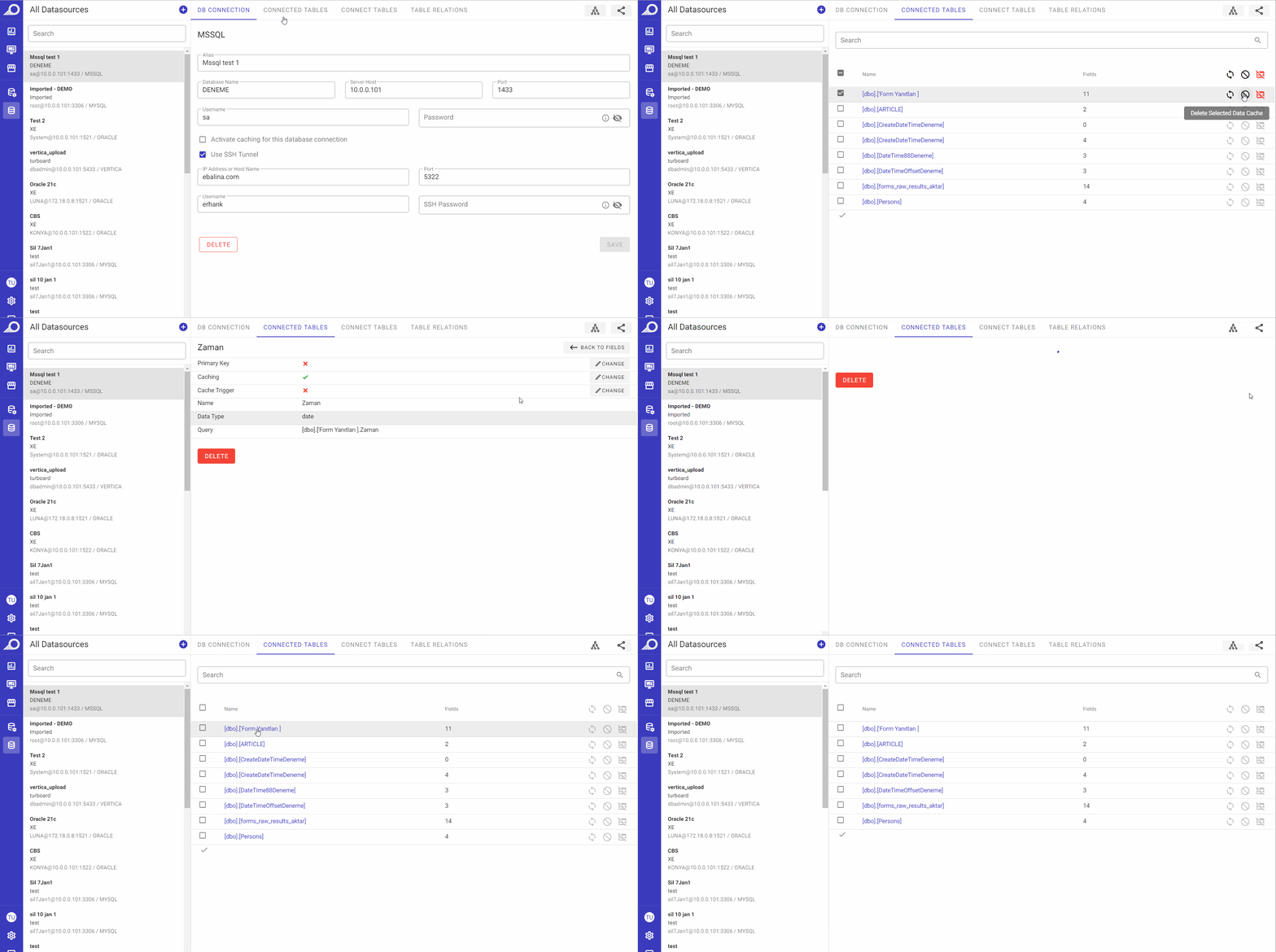
The added tables to the selected data source will be listed in this tab as below:
- Name: the name of the data table (as imported from the data source), hyperlinked and clickable to allow the user to manage its fields.
- Fields: displays the count of existing fields for the table as automatically detected when the data source connection was configured.
- Auto remove not existed fields icon: this icon is activated when selecting its table from the tables’ list. When clicked, any fields (or columns) in the table that no longer have corresponding values or data in the data source are automatically deleted to help keep the data table clean and organized, by removing any unnecessary fields that are no longer needed.
- Delete Data Cache icon: this icon is activated when selecting its table from the tables’ list. When clicked, the cache of the data in the relevant table will be cleared and the table will be re-populated with data from the original source.
- Delete Table icon: this icon is activated when selecting its table from the tables’ list and it allows the user to delete the selected table if it is no longer needed for analysis.
Managing Fields in “CONNECTED TABLES” Tab
When adding a new data source, its tables and their fields are automatically added and listed in TURBOARD’s interface. However, if within time the structure changes, users can manage such changes.
By clicking on the required table in “CONNECTED TABLES” tab, its fields are automatically listed from which the user can click on the required field to edit its properties. The user can:
- Add/remove fields from the selected table,
- Remove data cache of the selected field,
- Assign Primary Key (PK), and/or
- Assign Cache Trigger.
“CONNECT TABLES” Tab
When adding a new data source, the data schema and the tables structure are automatically detected and listed under this tab from which the user selects the required tables and adds them to the new data source connection.
If the user has chosen some (not all) tables to be added to the new data source connection and/or if the structure in the original data source changed with time, the remaining/new tables will be listed in this tab, and can be added to the data source any time later on by selecting the required table and clicking Add Selected Table icon.
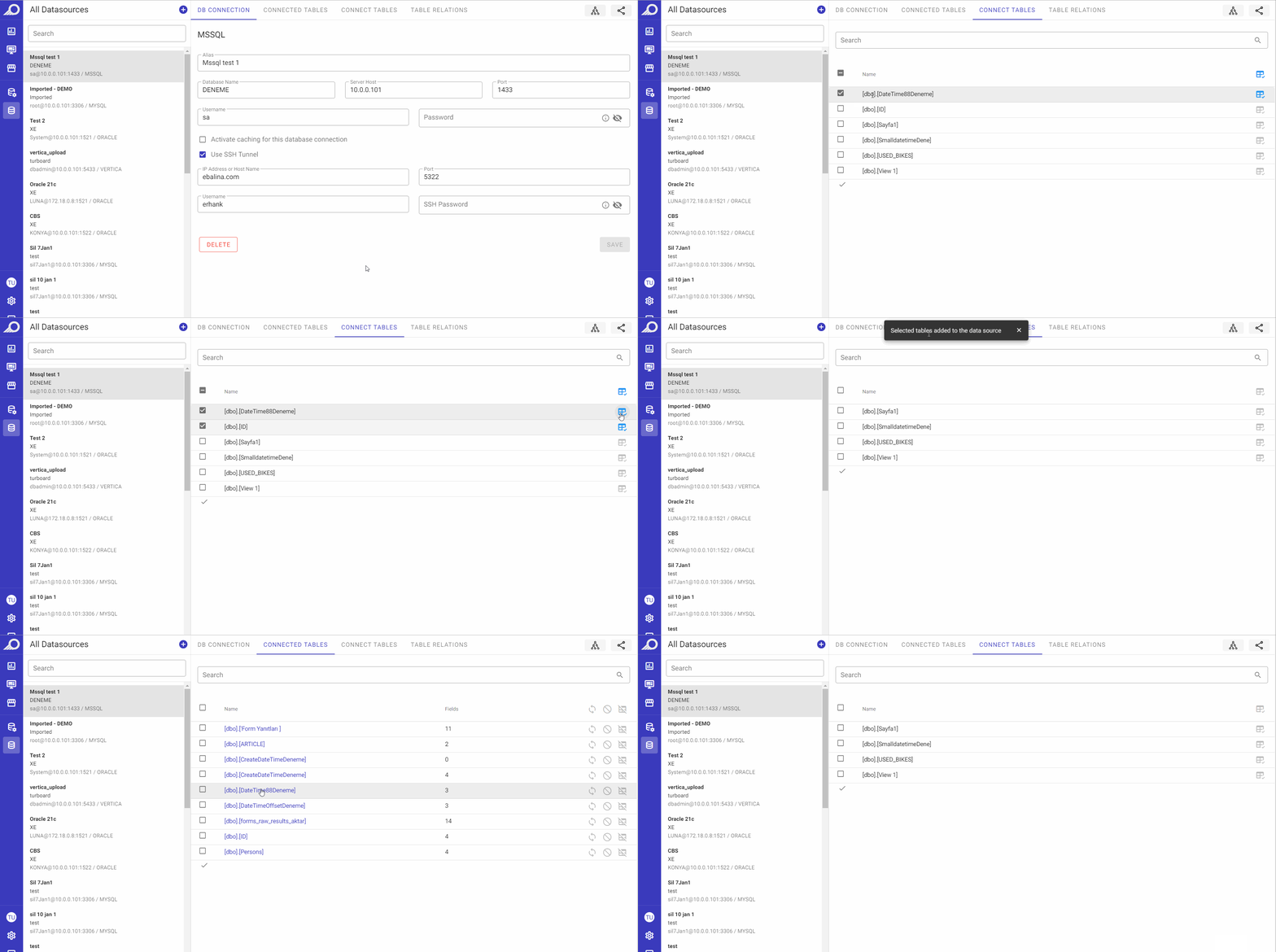
Table Relations
TURBOARD automatically finds the relationships between the tables in the data source and makes them available, but sometimes the user can create his/her own relationship(s) and create foreign keys between the data tables. In this case, the data source shall be refreshed after the relationship is created. Refresh process is described in “Views” section.
Creating User-Defined Relationships
User-defined relationships can be used in TURBOARD. A new relationship can be created by following the steps below:
1 When you click on the connected table/s listed in this tab, they will be displayed with their fields at the left-side of the window.
2 Select the required tables and apply your connections by choosing the required fields and drag-drop the connection using the mouse.
3 When done, click the Save icon at the right-top of the page.
4 You can use the Undo Changes icon to remove the connections before saving, or if you need to remove a connection/relation that was added previously, click on the connection line and click the Delete key on your keyboard.
5 You can use the Database Foreign Key Relations icon to automatically refresh the foreign key relations from the related database/data source – if any.
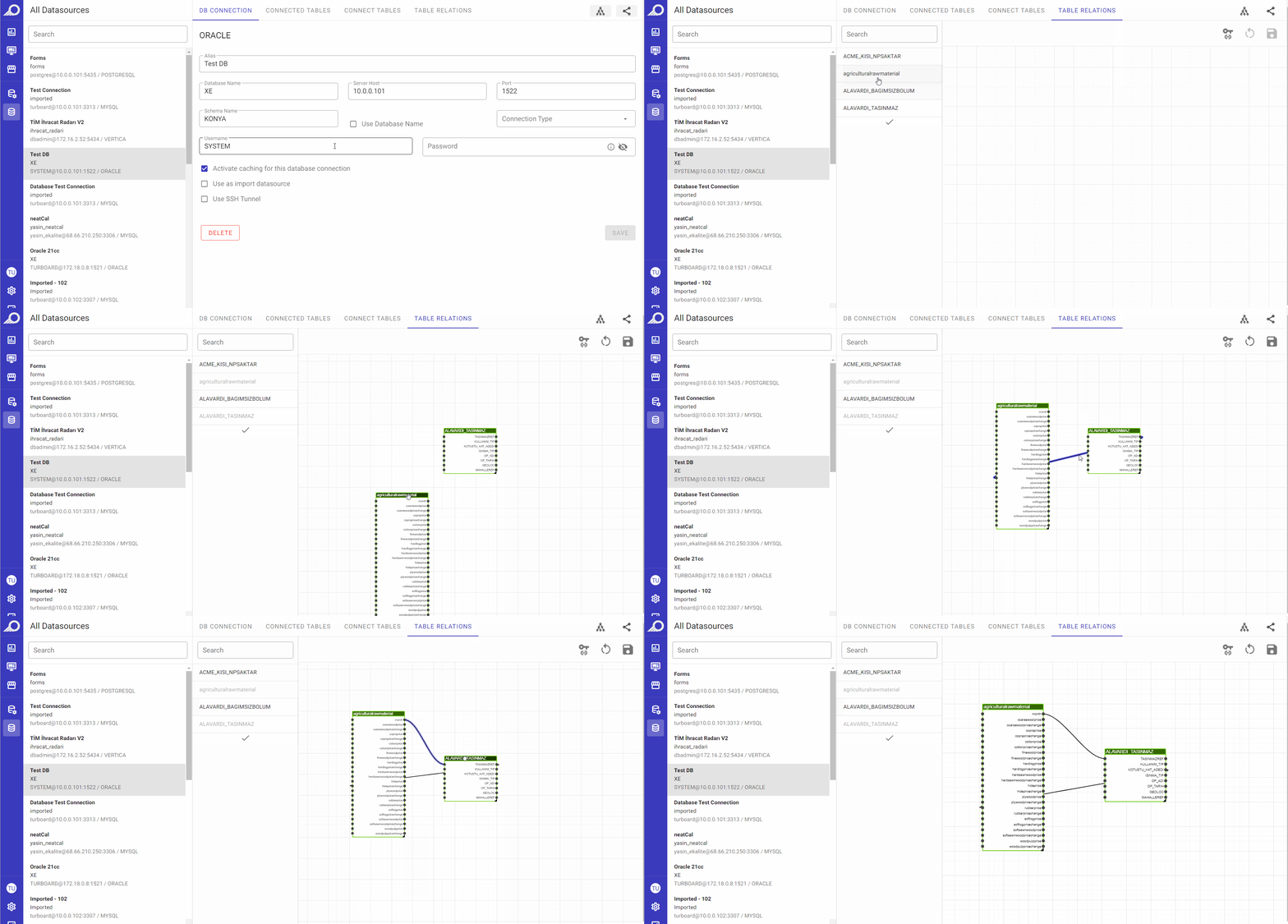
TURBOARD Foreign Key Management (Entity – Relationship)
Data Sources Meta Info
When clicking the Meta Info icon, an overlay window will open where all the views, dashlets, dashboards and showcases whose data are fetched/used and analyzed from this data source are listed as below:
- In tree view order, i.e. hierarchical collapsible tree.
- In a meta info format displaying the name of the entity, the name of the user who created the entity, creation and last update dates.
- The dependent entities (views, dashlets, dashboards and showcases) are hyperlinked and can be opened/accessed by clicking the link.
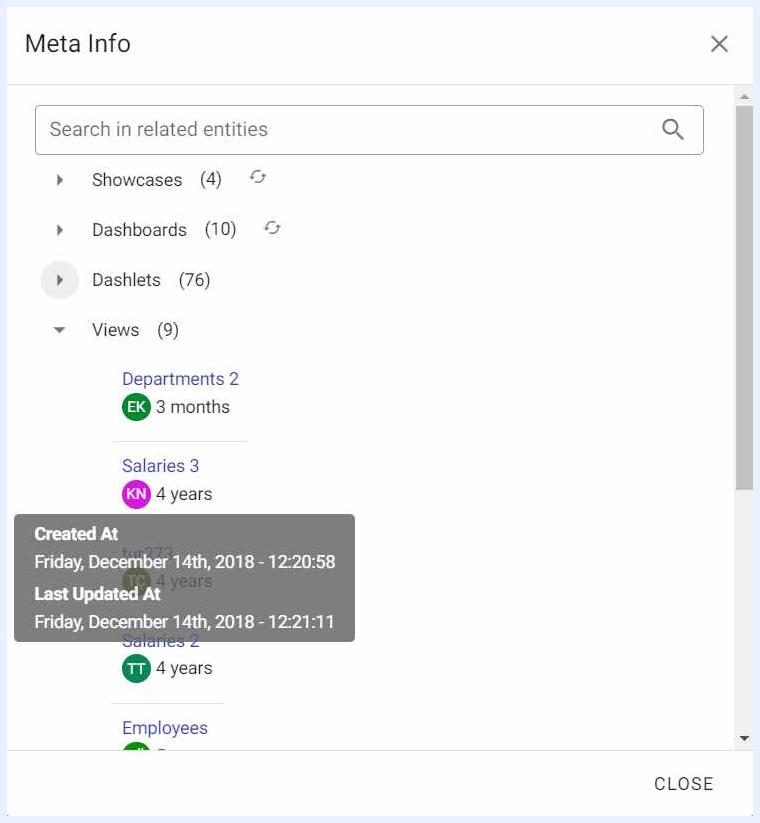
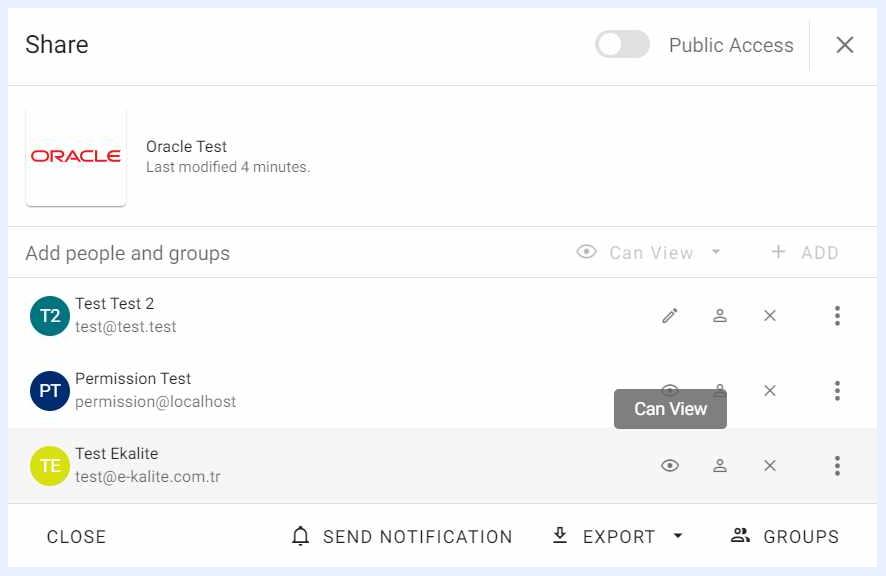
Sharing Data Sources
Using the “Share” icon, the added tables can be shared with other users or groups. When a data source is shared with “Can View” privilege, shared users may create any object ranging from views to showcases from the tables and fields in this data source. When it is shared with “Can Edit”, in addition to what is allowed with “Can View” privilege, the user may also apply changes like adding or removing fields, changing data types of fields, assigning PK's, assigning triggers, removing the table and/or removing the table cache.