Q&A – Designer Questions
This section is designed to provide TURBOARD users with answers to common questions that they may have about our platform.
We understand that using a new product can be challenging, and that you may have questions that you need answered in order to get the most out of your experience. That's why we've compiled this list of frequently asked questions and provided detailed answers to help you quickly find the information you need.
In addition to this section, you can also refer to our website's FAQ section for general information about the features and services we offer.
We also want to note that while we've included answers to many frequently asked questions in this section, there may still be questions you have that are not addressed here. If that's the case, please refer to the related documentation section in our user guide, where we provide thorough explanations to ensure that all of your questions are answered.
We encourage you to explore all of the resources available to you to maximize your experience with TURBOARD.
Sharing Visualizations with Other Designer Users
Can we share a report or a dashboard sample with other TURBOARD users and have it designed, built or edited as a team?
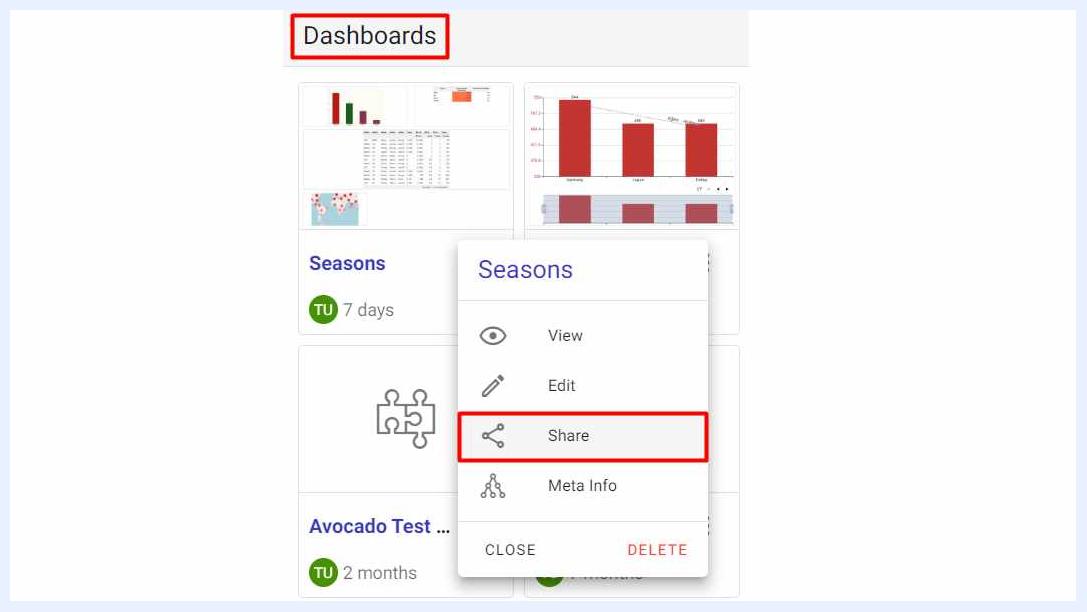
Yes. TURBOARD enables users who have designer (Edit) privileges in a team to design, build, edit and share reports and dashboards and gives them the ability to work efficiently and collaboratively.
Data Quality & Scrubbing Process Options
How can we determine data quality and data scrubbing process?
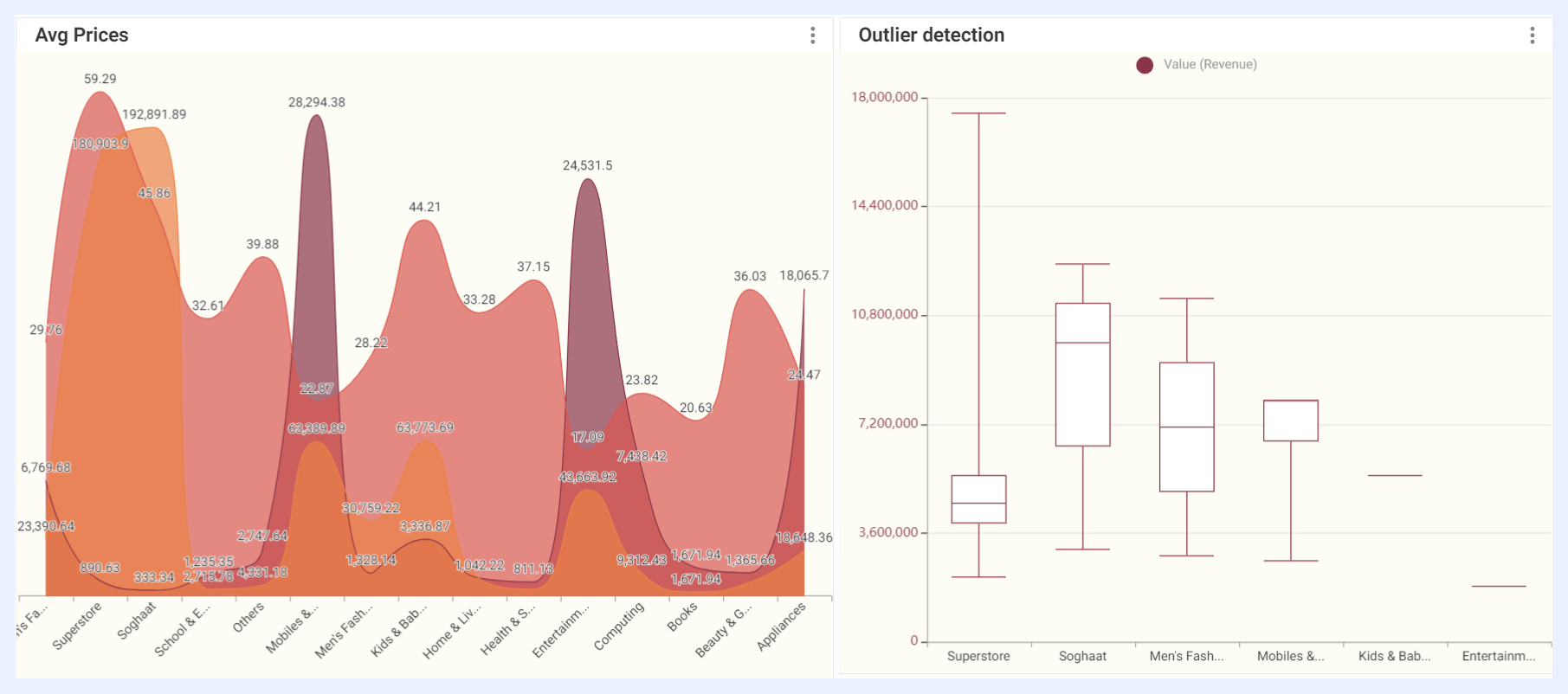
Although TURBOARD is not an MDM (Master Data Management) tool, you can still define heuristics, set alerts to be warned via e-mail, or use box plotting for the outlier detection. See the sample image below.
Assigning a Node as a Measure & a Dimension
Can a node be assigned both as a measure and a dimension?
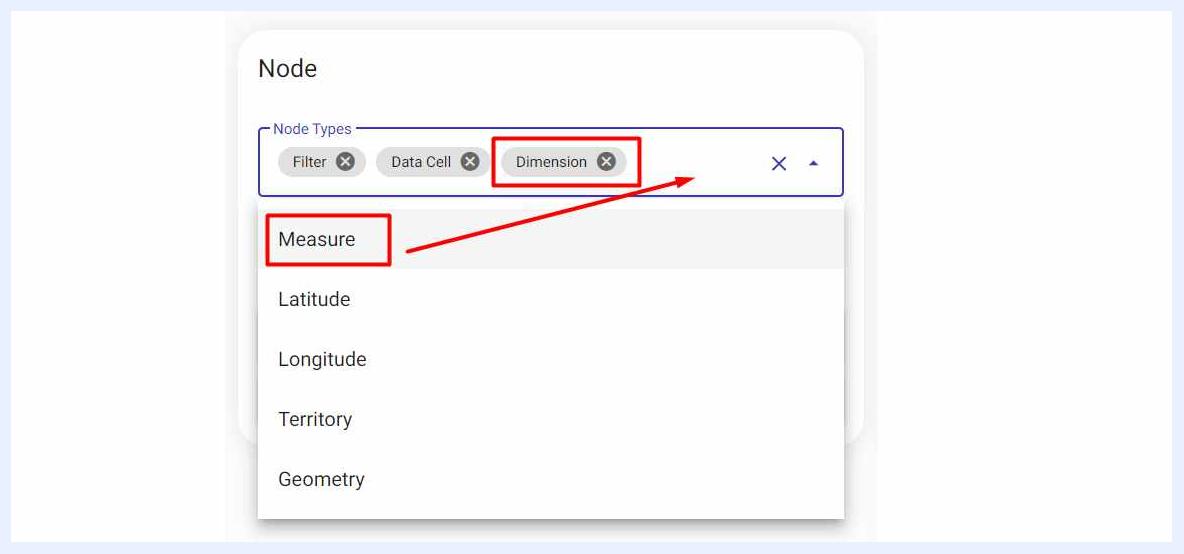
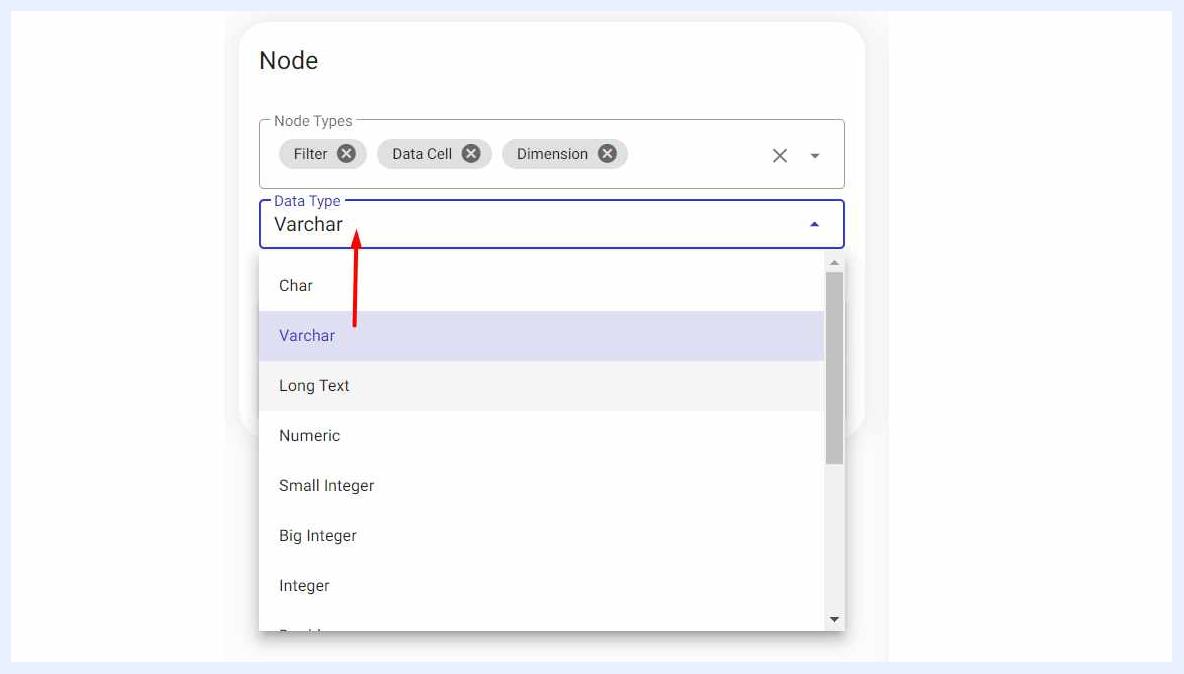
Yes, just add it to the “Node Types” combobox. It will be listed as both Dimension and Measure.
Casting Field Data Types
Can the field data type be casted?
Yes, change it from “Data Type” combobox.
Excluding a Dashlet from Dashboard Filters
How do I ensure that a dashlet is not affected by the dashboard filters?
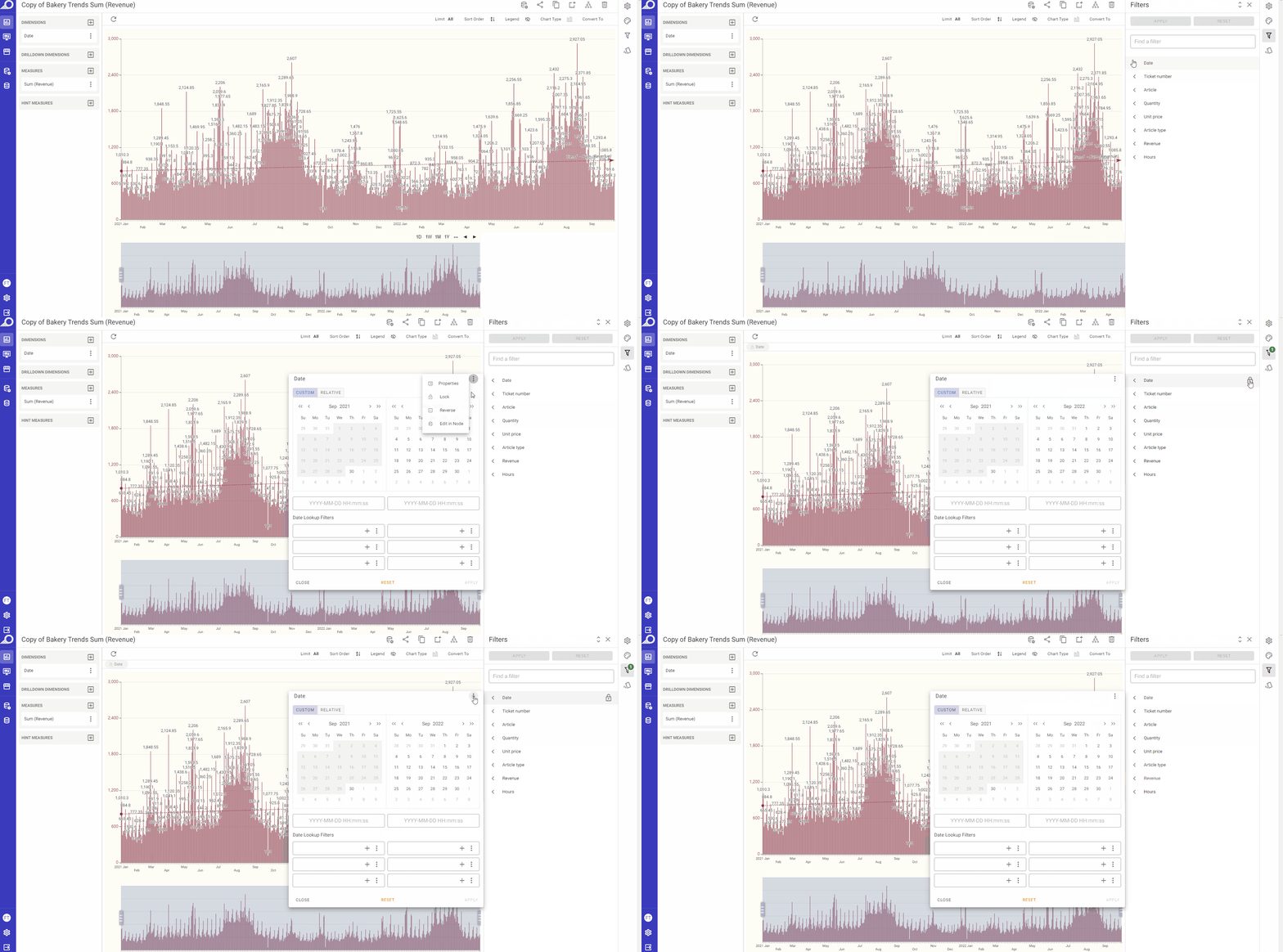
To do so, simply go to “Edit“ dashlet option > Click on its “Filters” icon > Choose the filter/s that you do not want to be affected from the slide-out menu > Click on the filter’s right corner ellipsis menu > Click Lock option.
Sorting Pivot Tables in Dashboards
How do I set a pivot table to be sorted in a specific order within the dashboard?
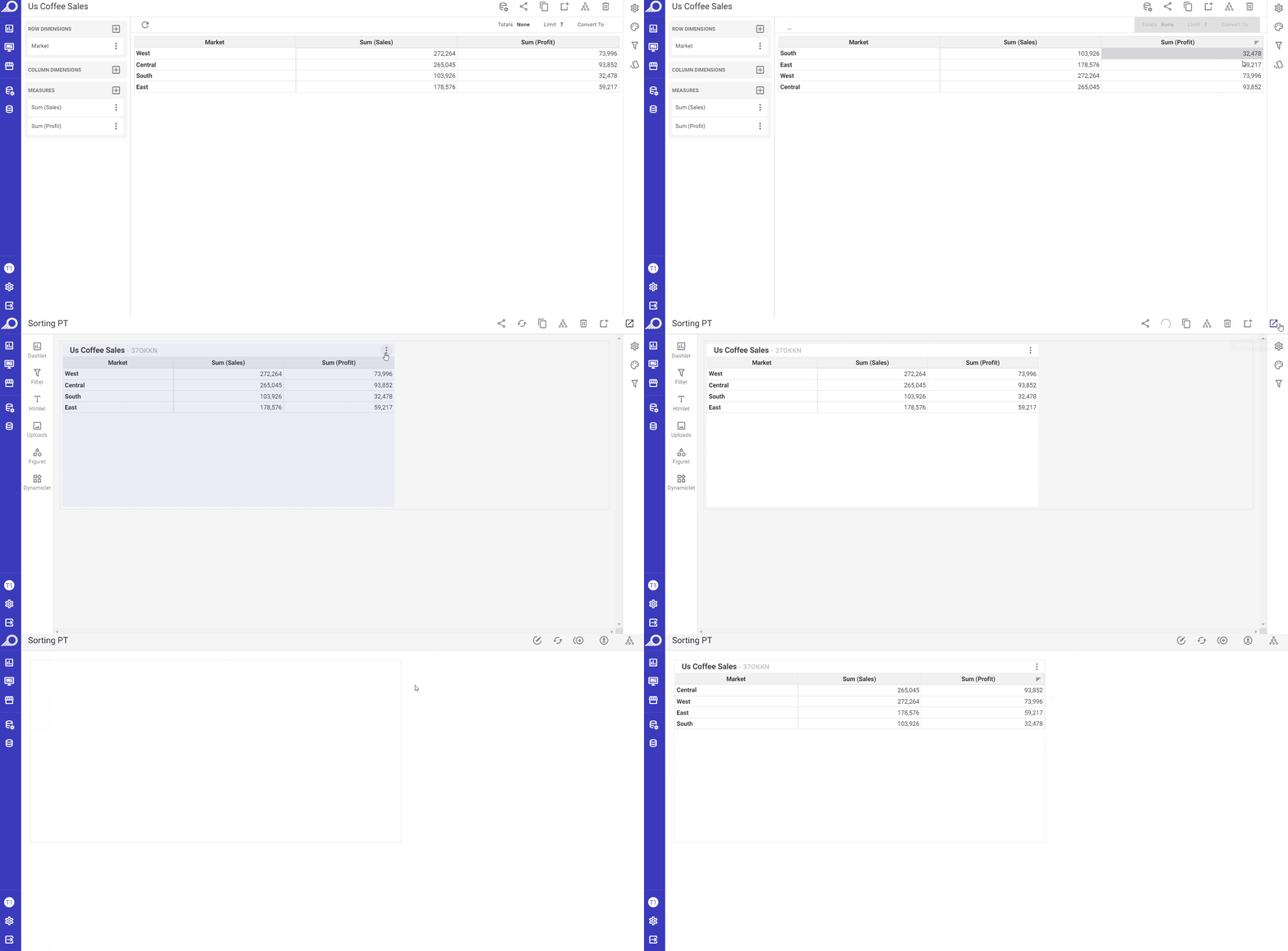
When you set the sorting of your PT dashlet in the required sorting order, it will always appear in the same order that you specified in the related dashboard as well. Simply, go to the dashlet “Edit“ mode and choose the sorting that you desire.
Showing Last Available Date in HTML Field
How do I show the last available date in a dashboard for the date dimension in the HTML field?
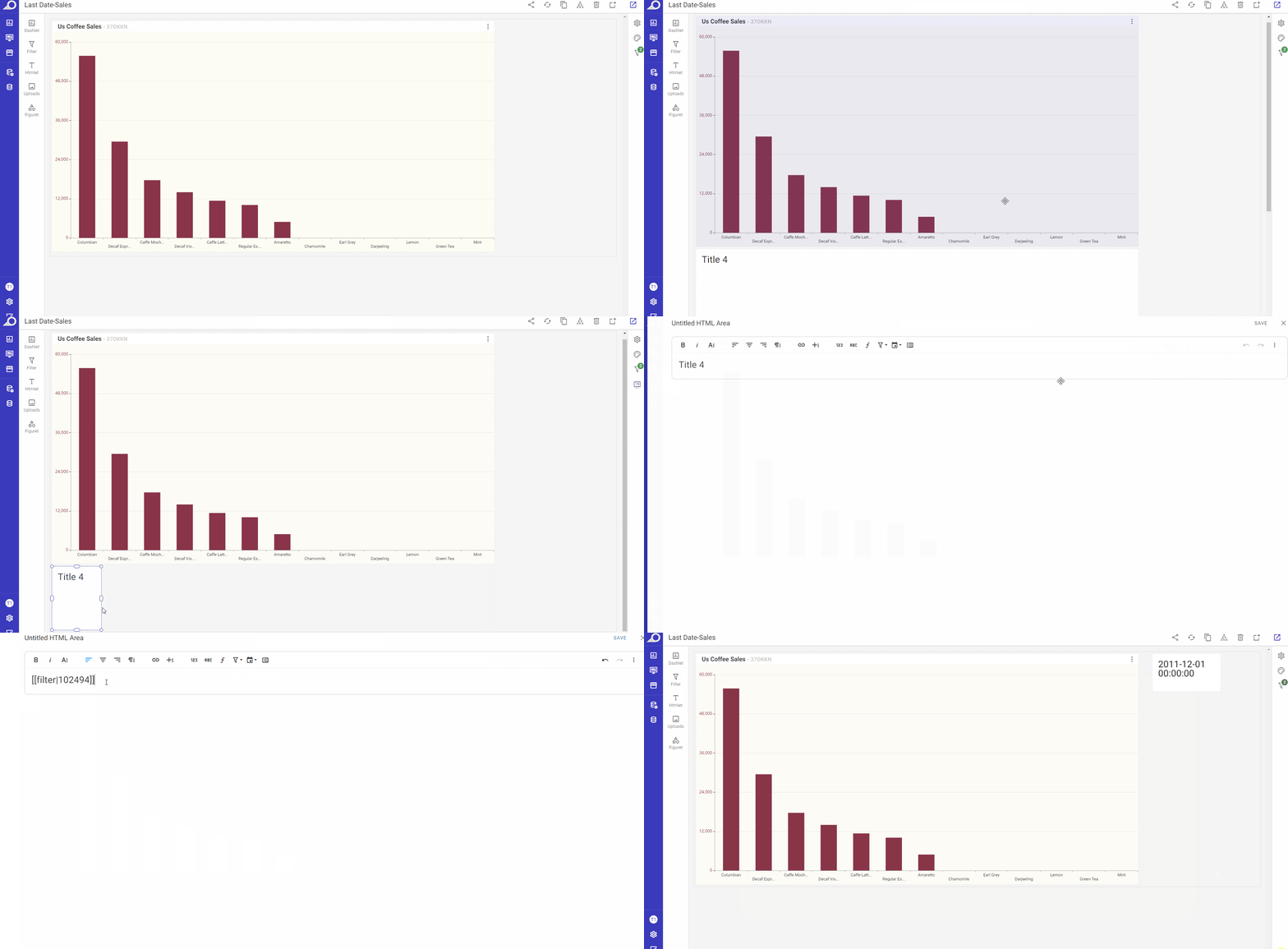
In the dashboard “Edit“ mode, you can display the maximum date using the “Max“ function and the ID information of the node in the HTML field. See the GIF below.
Uncontrolled Query Cases
In which cases an uncontrolled query is sent to TURBOARD?
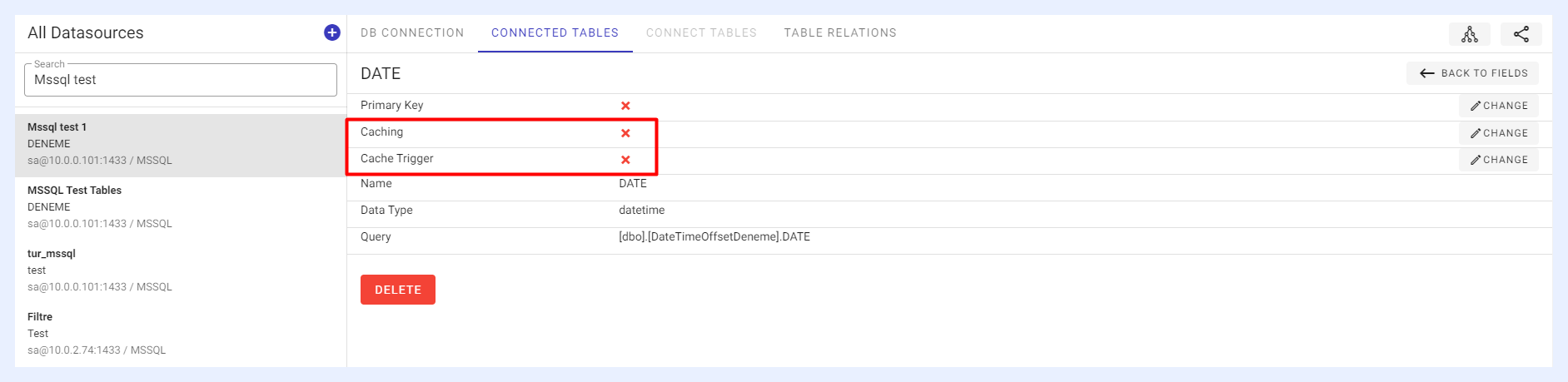
If the caching trigger is not turned on and caching is not enabled/activated for the data tables and its fields, it will send a query every time it is entered. See the image below.
Meaning of Codes Displayed on Dashlets
What is the meaning of the codes on the dashlets and what are they for?
There are 2 codes that can be displayed beside each dashlet title.
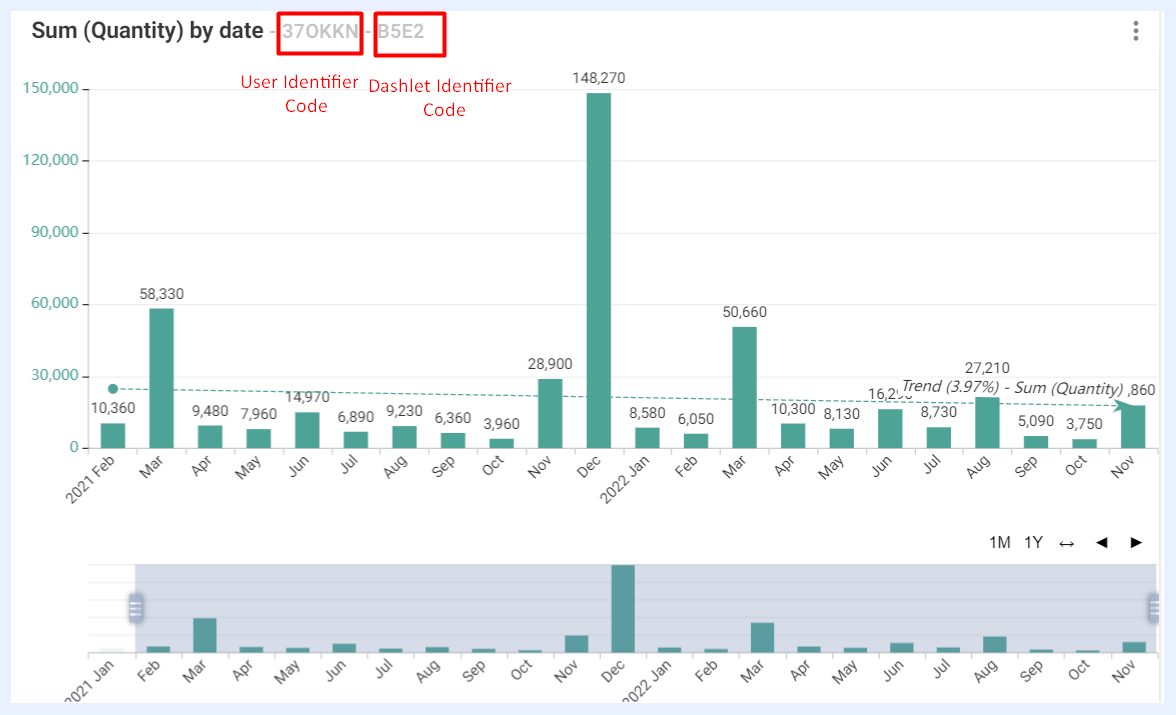
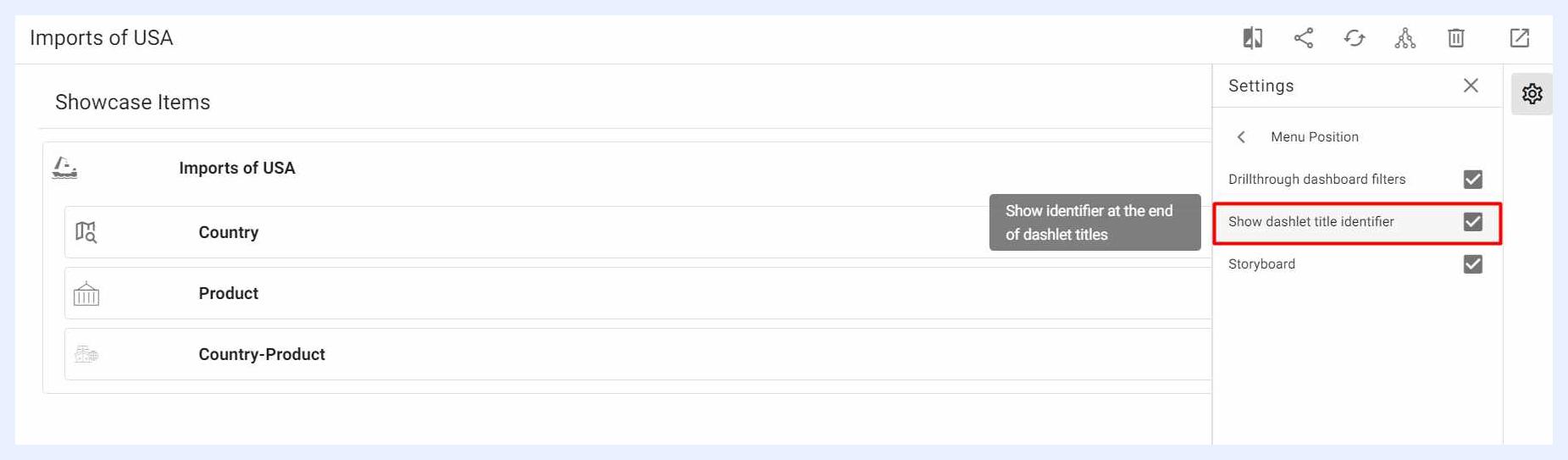
The first one is auto-generated specifically for each dashlet. They are unique identifiers for the dashlets and they help tracking applied actions and activities. They appear in showcases only and can be set to be displayed or hidden on the showcase from the selected showcase “Edit” window as in the image below.
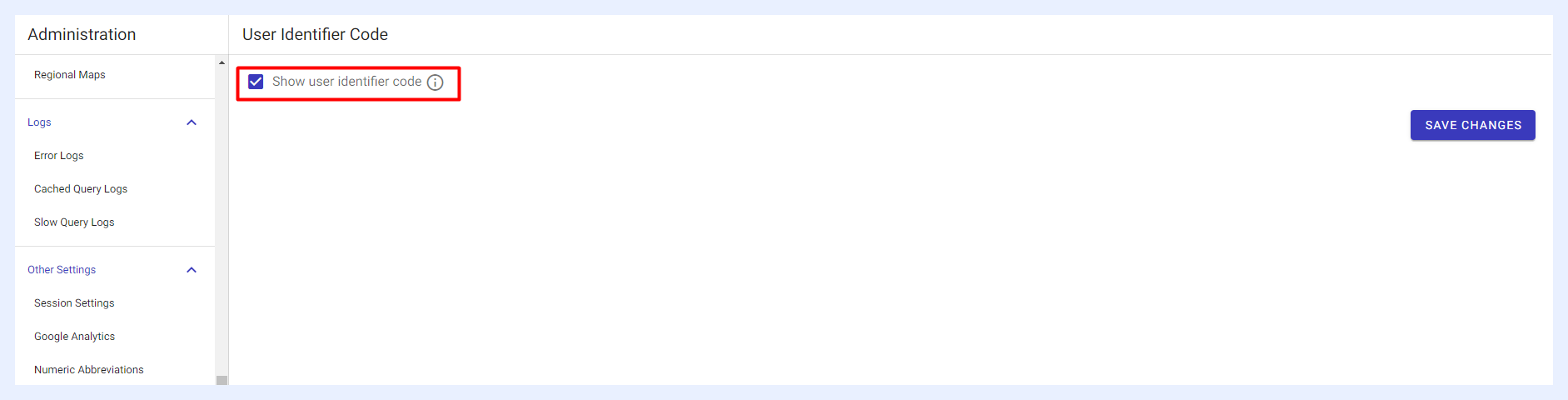
The second code is a unique identifier for the user who is viewing the dashboard and/or showcase. It helps tracking user activities. For example, if a user takes a screenshot of the relevant dashlet and sends it to another place, it can be found out which user sent it from the code on the dashlet.
This option can be set from “Administration” menu > “Other Settings” > “User Identifier Code” section as in the image below. When selected, the user identifier code will appear on all dashboards and showcases.
Normal Mode vs. Aggressive Mode Caching
What is the difference between Normal Mode caching and Aggressive Mode caching?
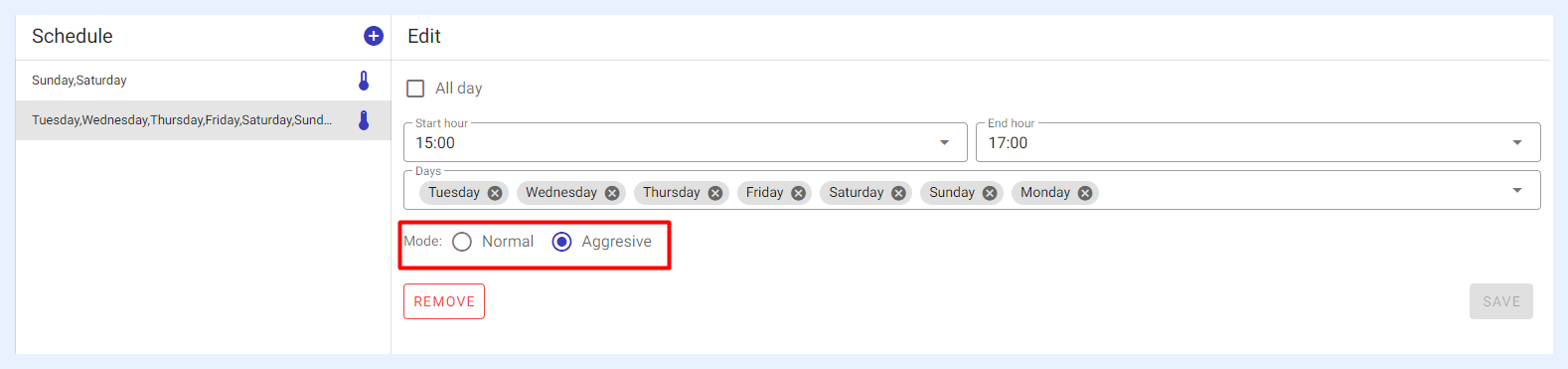
In “Aggressive” mode caching, the system will run 5 queries concurrently, while in “Normal” mode, it will run queries one after another. If the aggressive mode overlaps the normal one, the system will enable the aggressive mode.