Managing Views
When a view is successfully created on the database, its “Edit” mode is automatically available to allow the user to manage and change its settings and features.
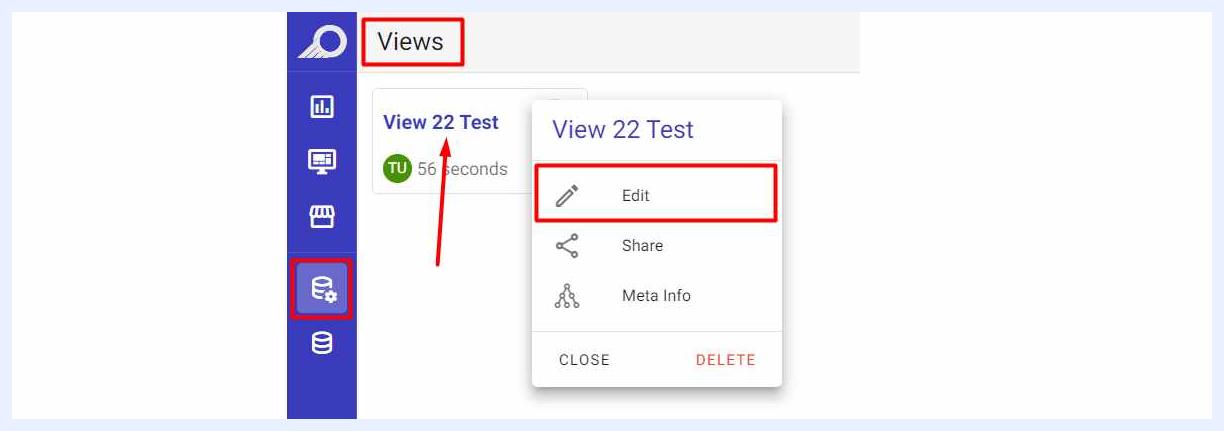
Any time later on, authorized users may edit/change views’ settings and features by clicking the name of the required view from the “Views” main page or clicking on the right-side ellipsis menu of the view and choosing “Edit” option.
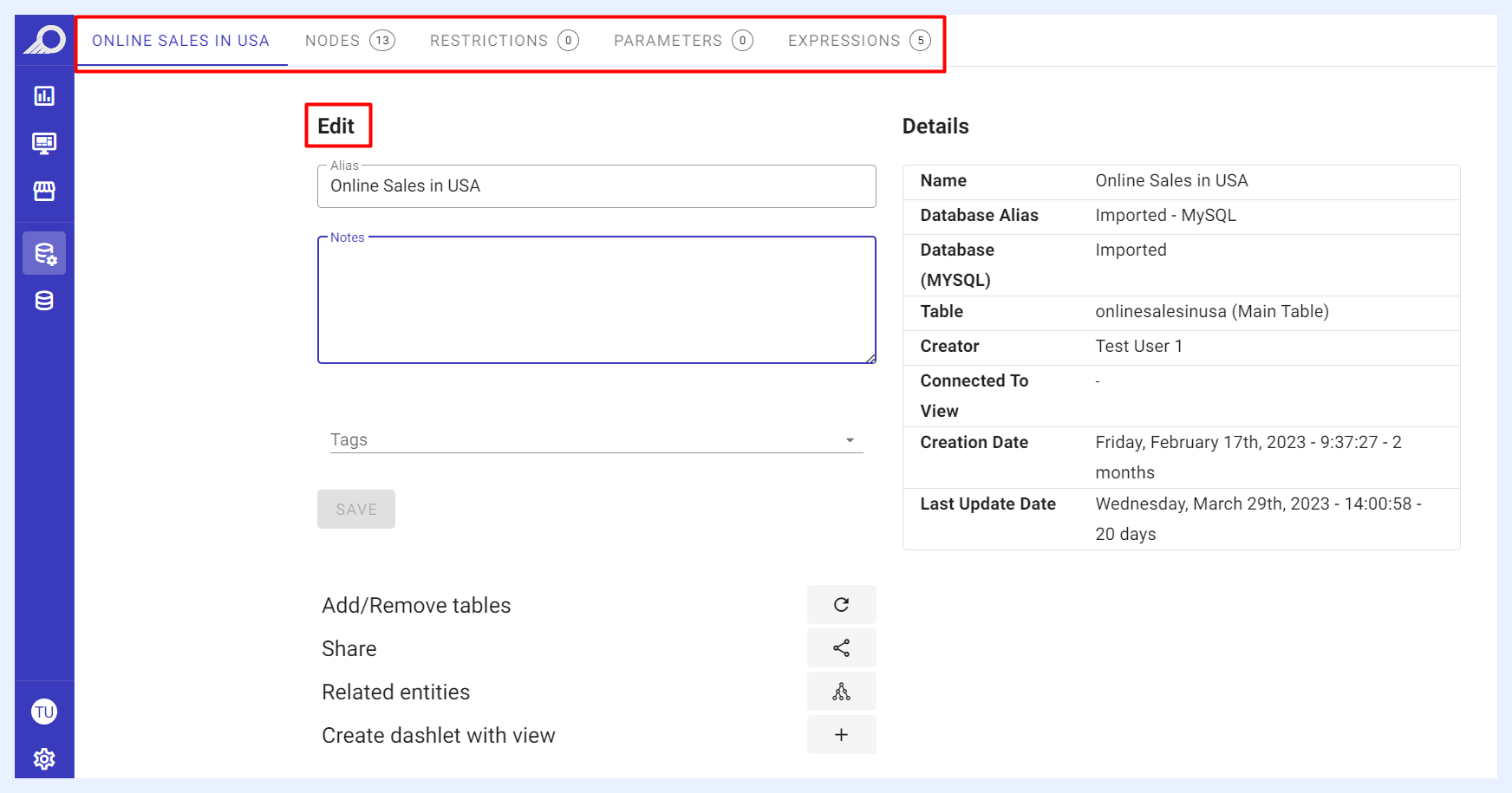
The page displays each feature and its settings in tabs located at the left-top side, in which the user can click on the required tab to manipulate its settings.
These settings are automatically recognized and determined by TURBOARD and are set by default when the view is created. Yet, the user can change them if certain business and/or end-user preferences are needed.
View General Settings Tab
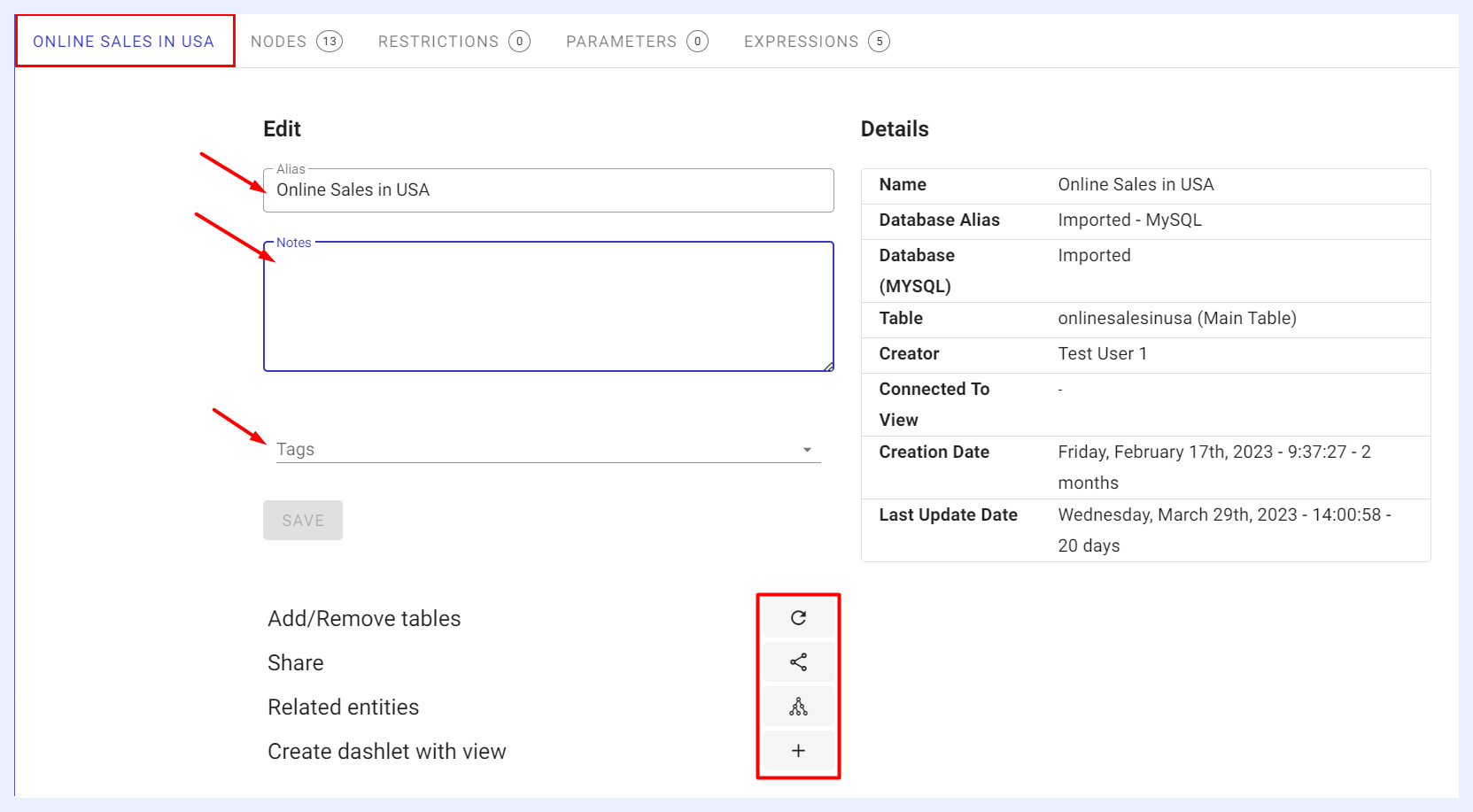
When the view is successfully imported/created, its alias is set by default according to its data source. However, the user can change the alias, add notes/description, and/or add tags to the relevant view.
Tags are useful for organizing and searching for content, as they allow you to quickly filter and find items that have been labeled with the same tag. When you label views with specific keywords or terms, it will help find them grouped together upon “Search” in their listing main page.
Other options/actions are available by clicking the related icon as below:
| View General Settings Actions Explained | |
|---|---|
| Add/Remove tables: | to refresh the data as it detects the changes in the data source and applies them by clicking “Refresh” icon button. |
| Share: | to share the view with other users or groups. When a view is shared with “Can Use” privilege, shared users may create any object ranging from dashlets to showcases. When it is shared with “Can Edit”, in addition to what is allowed with “Can Use” privilege, the user may apply changes to the view settings as well. This option can also be accessed from the View’s ellipsis menu in the Views’ listing window. |
| Related entities: | when clicked, a pop-up window opens listing all the related dashlets, dashboards and showcases that this view is used/depends on. This option can also be accessed from the View’s ellipsis menu in the Views’ listing window, namely the “Meta Info” option. |
| Create dashlet with view: | to create a new dashlet from this view. By clicking this button, the new dashlet creation page is opened with this view selected as its source by default. |