Parameters in Views
In TURBOARD, parameters are powerful tools that allow users to dynamically customize data queries and reports based on specific inputs. They can be used to filter data, set thresholds, or simulate “what-if” scenarios without modifying the underlying dataset or SQL queries. Parameters empower users to interact with the data and perform flexible analyses, adjusting queries in real-time to generate insights from different perspectives. This dynamic feature helps users create interactive dashboards that can adapt to various needs and business questions on the fly.
Types of Parameters
1 Pre-defined Parameters: TURBOARD includes commonly used date parameters by default, which are often needed for filtering data by time ranges.
2 User-defined Parameters: These are custom variables created by users. They can function similarly to macros, enabling flexible, dynamic reporting, or be used in what-if scenarios to simulate different outcomes by adjusting values within formulas.
In Data Science, a variable represents a feature or attribute of the data, such as age, income, or temperature. Variables are used in analyses, models, and algorithms to make predictions and identify patterns.
In SQL, a variable is a placeholder that temporarily holds data during query execution. When you define a custom variable in SQL, you're creating a user-defined element that stores a value, allowing for dynamic and flexible queries.
How to Use Parameters
Parameters are integrated into SQL expressions to add dynamic capabilities to your dashboards. When you define a parameter in TURBOARD, it acts as a placeholder that users can adjust in real-time to modify the outcome of a query. This dynamic structure allows users to filter data or perform simulations instantly, directly affecting the data displayed in the dashboard.
Users can customize parameters according to specific criteria, such as revenue, expenses, or other key metrics, to simulate how changes affect overall results. This makes TURBOARD dashboards highly interactive and flexible, enabling different users to analyze the same data from various perspectives and quickly evaluate different scenarios.
Sample Use Cases for Parameters
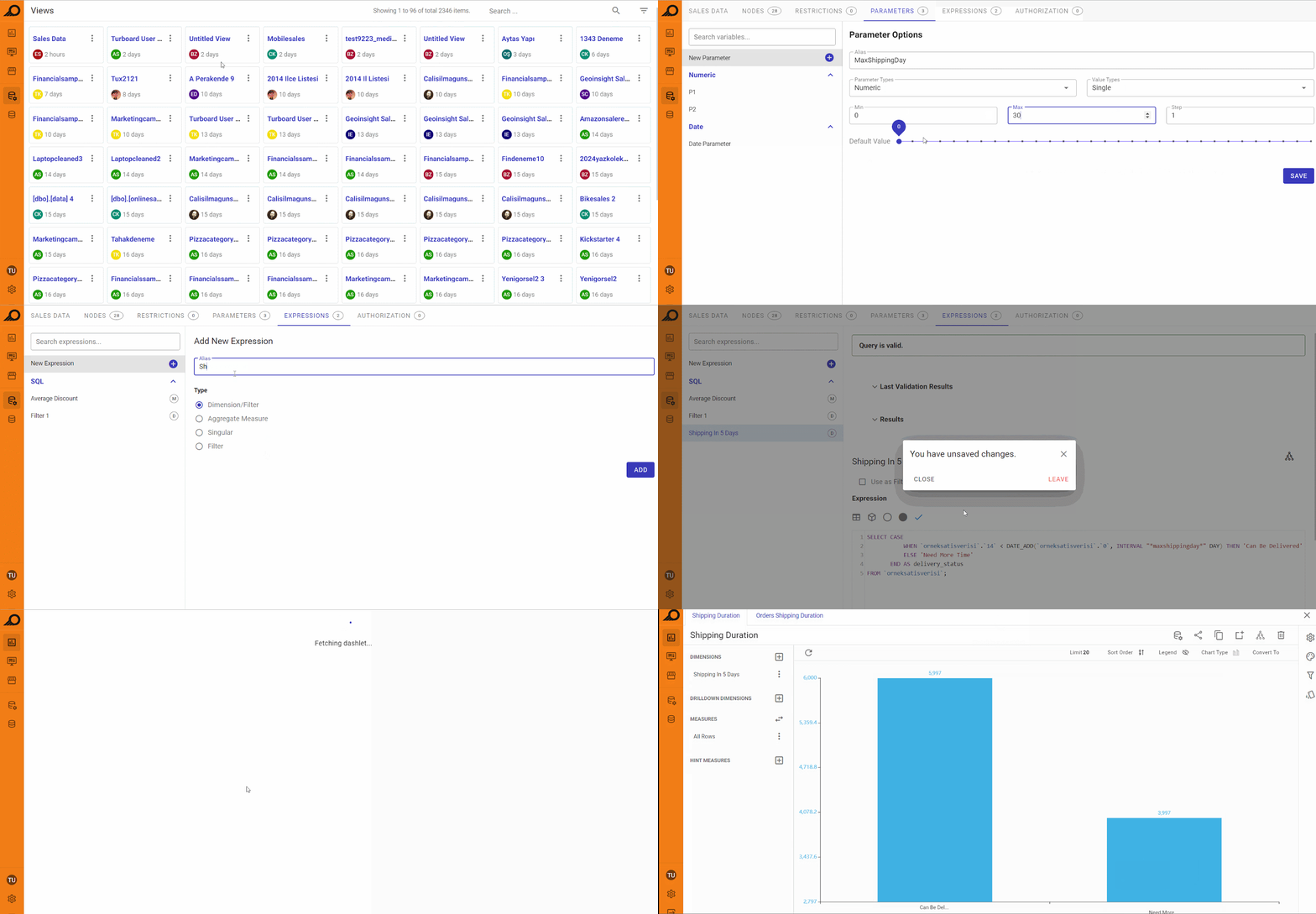
1. Shipping Deadline Verification
Purpose: Define a parameter to allow dashboard users to check if orders can be shipped within a specified number of days.
Parameter Options:
- Parameter Alias: MaxShippingDay
- Parameter Type: Numeric
- Value Type: Single
- Min & Max Values: 0 to 30
- Step: 1
- Default Value: 5
SQL Implementation: To use this parameter in your SQL query, the below code is appropriate.
SELECT CASE WHEN `sales_data`.`end_date` < DATE_ADD(`sales_data`.`start_date`,
INTERVAL "*MaxShippingDay*" DAY)
THEN 'Can Be Delivered'
ELSE 'Need More Time'
END AS delivery_status FROM `sales_data`;
Result: This query checks whether orders can be shipped within the MaxShippingDay that the user selects or specifies in the dashboard's filter control and labels each order as either 'Can Be Delivered' or 'Need More Time.' For example, a user can adjust the shipping day threshold to values such as 5 days, 10 days, etc., and the query will recalculate the delivery status accordingly. When using dynamic parameters like MaxShippingDay in SQL expressions within TURBOARD, they should be enclosed in both asterisks (*) and double quotes ("). This marks the parameter as dynamic, enabling TURBOARD to substitute the value during filter query execution based on the user-defined input.
2. Threshold Alerts
Purpose: Define a parameter to set a threshold for triggering alerts in your dashboard reports. For example, ‘MinStockLevel’ can be set to trigger an alert when stock levels fall below a certain number.
Parameter Options:
- Parameter Alias: MinStockLevel
- Parameter Type: Numeric
- Value Type: Single
- Min & Max Values: 0 to 500
- Step: 5
- Default Value: 10
SQL Implementation: To use this parameter in your SQL query, the below code is appropriate.
SELECT CASE
WHEN "*StockLevel*" <= "*MinStockLevel*" THEN 'Alert: Low Stock'
ELSE 'Stock Sufficient'
END AS stock_status FROM Inventory;
Result: This query categorizes inventory stock levels based on the MinStockLevel parameter. When the stock level is below or equal to the specified threshold, the result is labeled as 'Alert: Low Stock.' If the stock level is above the threshold, the result is labeled as 'Stock Sufficient'. The MinStockLevel parameter can be used as a filter in the dashboard, adjustable in steps of 5 or 10. When users adjust this parameter, the dashboard dynamically updates, allowing stock status to be instantly analyzed according to the new threshold, ensuring timely low-stock alerts. When using parameters such as MinStockLevel in SQL expressions within TURBOARD, it is necessary to enclose the parameter name in both asterisks (*) and double quotes ("). This ensures that the system will replace "*MinStockLevel*" with the value input by the user at runtime. This dynamic substitution enables users to modify the parameter directly within the dashboard’s filter, thereby customizing their analysis and interacting with real-time data.
3. Budget Impact Simulation
Purpose: Allow budget planners to simulate how overall budget outcomes will be affected by varying expense and income growth percentages.
Parameter 1 Options:
- Parameter Alias: ExpenseIncrease
- Parameter Type: Numeric
- Value Type: Single
- Min & Max Values: 0.00 to 1.00 (representing 0% to 100%)
- Step: 0.05 (representing 5%)
- Default Value: 0.10 (representing 10%)
Parameter 2 Options:
- Parameter Alias: IncomeIncrease
- Parameter Type: Numeric
- Value Type: Single
- Min & Max Values: 0.00 to 1.00 (representing 0% to 100%)
- Step: 0.05 (representing 5%)
- Default Value: 0.15 (representing 15%)
SQL Implementation: Two separate expressions to allow independent adjustment of expenses and income.
Expression 1 (for ExpenseIncrease):
SELECT
SUM(ActualExpense * (1 + "*ExpenseIncrease*"))
AS TotalProjectedExpense FROM BudgetData;
Expression 2 (for IncomeIncrease):
SELECT
SUM(ActualIncome * (1 + "*IncomeIncrease*"))
AS TotalProjectedIncome FROM BudgetData;
Result: This setup provides two filters in the dashboard: the ExpenseIncrease and IncomeIncrease parameters. Users can adjust these parameters independently and simulate how changes in both factors affect the budget outcomes. The dashboard dynamically updates to reflect these changes, allowing users to analyze budget projections more flexibly and in greater detail based on the percentage increases in expenses and income. In this example, the parameters "*ExpenseIncrease*" and "*IncomeIncrease*" are enclosed in both asterisks (*) and double quotes (") within the SQL expressions. This dynamic substitution allows TURBOARD to replace them with user-defined values entered through the dashboard.
4. Profit/Loss Prediction Upon Price Changes
Purpose: Allow users to predict profit or loss based on price adjustments for multiple products (Product 1, Product 2, and Product 3). These price changes are applied dynamically, and users can simulate how varying the prices of these products will impact their profit or loss.
Parameter 1 Options:
- Parameter Alias: product_1_price
- Type: Numeric
- Value Type: Single
- Min & Max Values: 0.75 to 1.25 (where 0.75 represents a 25% price decrease and 1.25 represents a 25% price increase)
- Step: 0.01 (representing 1% of price change)
- Default Value: 1 (representing the current price)
Parameter 2 Options:
- Parameter Alias: product_2_price
- Type: Numeric
- Value Type: Single
- Min & Max Values: 0.75 to 1.25 (where 0.75 represents a 25% price decrease and 1.25 represents a 25% price increase)
- Step: 0.01 (representing 1% of price change)
- Default Value: 1 (representing the current price)
Parameter 3 Options:
- Parameter Alias: product_3_price
- Type: Numeric
- Value Type: Single
- Min & Max Values: 0.75 to 1.25 (where 0.75 represents a 25% price decrease and 1.25 represents a 25% price increase)
- Step: 0.01 (representing 1% of price change)
- Default Value: 1 (representing the current price)
SQL Implementation: Three separate SQL expressions are used to calculate the predicted profit or loss for each product, based on AI-generated predictions for sales volume. These expressions adjust sales estimates depending on the dynamic price changes set by the user.
Expression 1 (for Product 1 Profit Calculation):
SELECT (IF(SUM(inventory_data.weekly_sales_volume * (((0.94349684 * "*product_1_price*") + (3.22416552 * "*product_2_price*") + (-2.96978897 * "*product_3_price*") - 0.1980703342963821)) > 0,
SUM(inventory_data.weekly_sales_volume * (((0.94349684 * "*product_1_price*") + (3.22416552 * "*product_2_price*") + (-2.96978897 * "*product_3_price*")) - 0.1980703342963821)), 0) * SUM("*product_1_price*" * unit_price - 19))) `predicted_profit` FROM inventory_data WHERE date
IN  (SELECT max(date)
FROM inventory_data)
(Repeat for Product 2 and Product 3 using similar SQL expressions).
Result: Parameters in TURBOARD are enclosed in both asterisks (*) and double quotes (") within the SQL expressions to enable substituting these values dynamically based on user input. These expressions are integrated as filters into a dashboard that allows users to adjust the price parameters for each product (Product 1, Product 2, and Product 3). The dashboard dynamically calculates and displays the predicted profit or loss based on the price changes. Each expression provides the expected profit or loss for the specific product, and the overall profit can be further calculated by summing the results.
Purpose of the Coefficients: The coefficients in the expression (0.94349684, 3.22416552, and -2.96978897) represent the impact of each product's price on overall profit. These coefficients were derived from an AI-based predictive model, indicating how sensitive the profit is to changes in each product’s price. The higher the coefficient value, the greater the impact on profit. A positive coefficient means that increasing the product price will increase profit, while a negative coefficient means that increasing the price will reduce profit.
Note
In TURBOARD, parameters used within SQL expressions must be enclosed in both asterisks (*) and double quotes ("). This indicates that the value will be dynamically substituted based on user input for the dashboard filter. For example, when referencing a parameter like IncomeIncrease, it should be written as "*IncomeIncrease*" in the SQL query. This allows TURBOARD to recognize and replace the parameter with the appropriate user-defined value during query execution.
How to Define a New Parameter?
1 Navigate to the “Parameters” tab, and click on the New Parameter + option. A side window will open.
2 Define the new parameter options as below:
- Parameter Alias: Enter a name for your parameter in the text field.
- Parameter Type: Select the type from the drop-down list (String, Date, Date & Time, Numeric).
- Value Type: Choose whether the parameter allows for a single or multiple values.
- Default Value: Set a default value for the parameter.
3 Once all options are defined, click the SAVE button to create the parameter.
4 After defining the parameter, navigate to the “Expressions” tab, and use the new parameter as required in your SQL queries or calculations.