UI General Features
Start Page
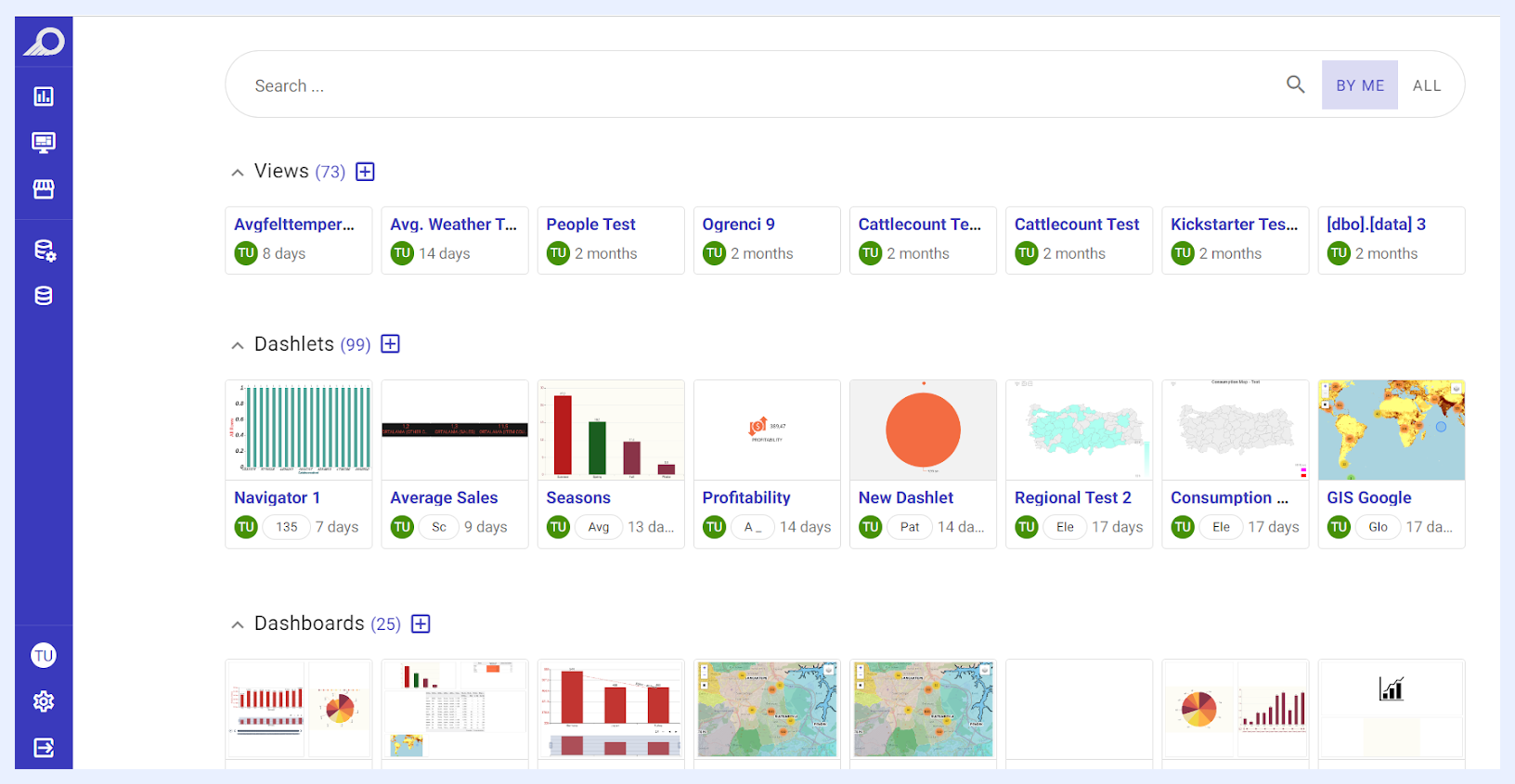
When a user successfully logs into TURBOARD, he/she will be directed to TURBOARD’s main interface, namely the “Start Page”. It generally consists of:
- A “Search” bar that enables the user to browse and locate any view, dashlet, dashboard, or showcase that they have access to – whether it was shared or created by them.
- The shared views and visualizations, which include dashlets, dashboards, and showcases, are displayed as clickable elements listed under each respective element type in accordion menus.
Navigation Sidebar Menu
The Navigation Sidebar Menu is a menu feature that appears with a fade-in and fade-out animation and is available on all TURBOARD main screens. It provides quick access to TURBOARD's main functions and screens, which include:
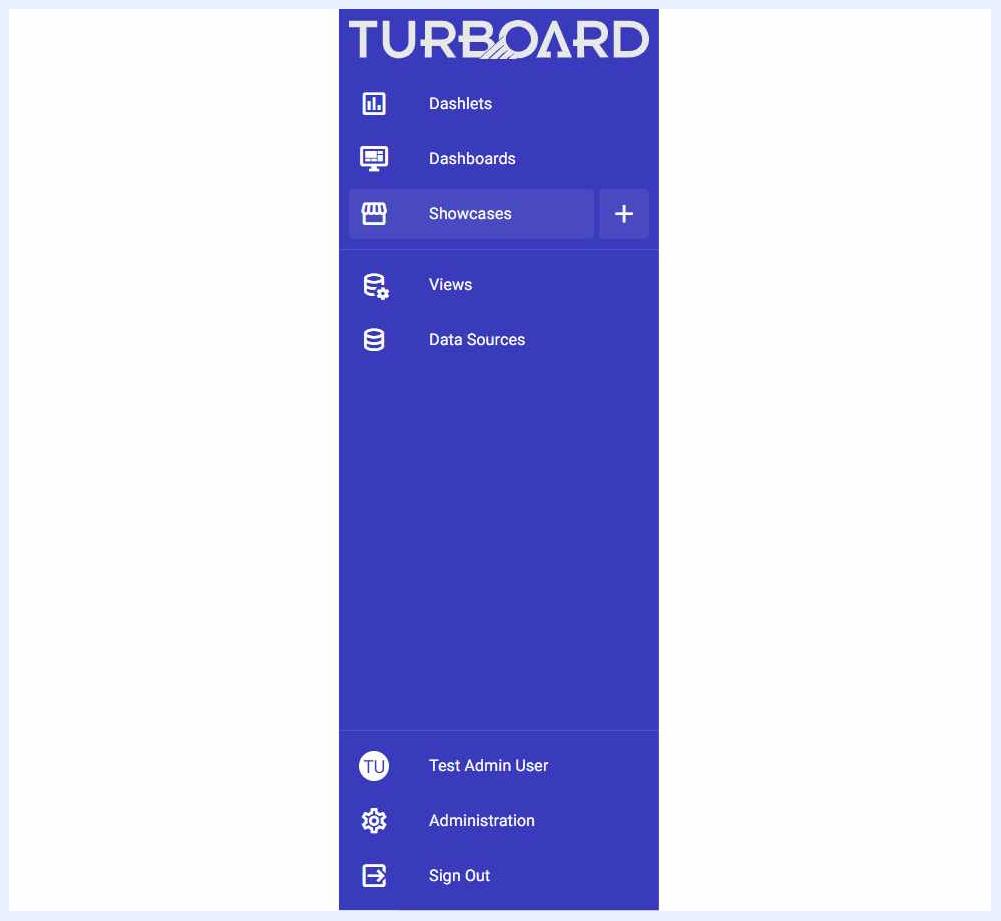
Data Sources: users can navigate to the connected Data Sources screen or connect to a new Data Source via the + icon. Creating a new data source is only available to Admin users, while navigating to the relevant screen listing all connected data sources is available to all users.
Views: users can navigate to the Views listing screen or create a new View (set of data) via the + icon. Creating a new view is only available to Admin and Designer users, while navigating to the relevant screen listing all shared views is available to all users.
Dashlets: users can navigate to the Dashlets listing screen or create a new Dashlet via the + icon. Creating a new dashlet is available to Admin and Designer users, while navigating to the relevant screen listing all shared dashlets is available to all users.
Dashboards: users can navigate to the Dashboards listing screen or create a new Dashboard via the + icon. Creating a new dashboard is only available to Admin and Designer users, while navigating to the relevant screen listing all shared dashboards is available to all users.
Showcases: users can navigate to the Showcases listing screen or create a new Showcase via the + icon. Creating a new showcase is only available to Admin and Designer users, while navigating to the relevant screen listing all shared showcases is available to all users.
Administration: users can navigate to the Administration panel to manage and edit the system's configurations and settings. This option is available only to Admin users.
JAS — AI Assistant
JAS is TURBOARD's built-in AI assistant. Rather than a separate add-on, it is integrated throughout the platform and appears as a pane that can be opened from the interface toolbar. From this pane, users can create dashlets by describing what they want in plain language, get natural-language summaries of dashboards and data tailored to different audience types (AI Personas), generate SQL for views from a plain description, and ask how to use a feature to receive guidance within the context of the current screen.
For detailed operational guidance on how to maximize the AI capabilities, refer to the JAS Pane and JASlet documentation sections.
Note
Older material may refer to JAS as “TURBot”. The current name is JAS throughout the platform.
User Profile
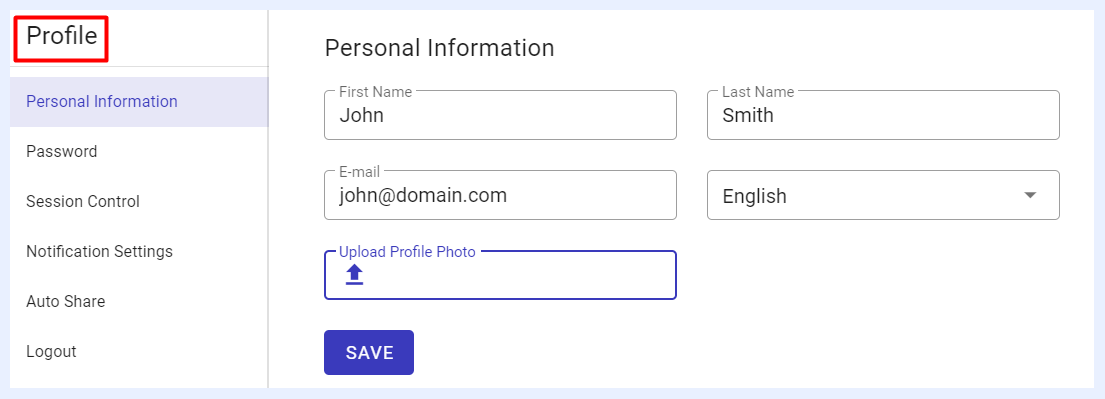
The User Profile section allows users to manage their account settings. Upon clicking on the user’s profile icon/name from the Navigation Sidebar Menu, a side window appears with several sub-menu options:
Personal Information: The user can update first name, last name, email, interface language, and upload a profile photo.
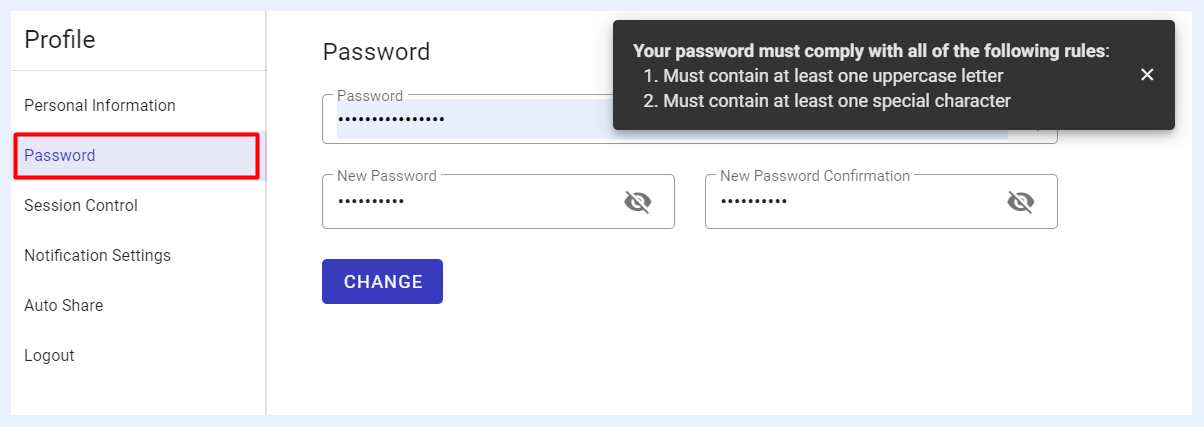
Password: The user can change their password by entering the current password, then specifying and confirming a new password that complies with security guidelines (at least one uppercase letter, and one special character).
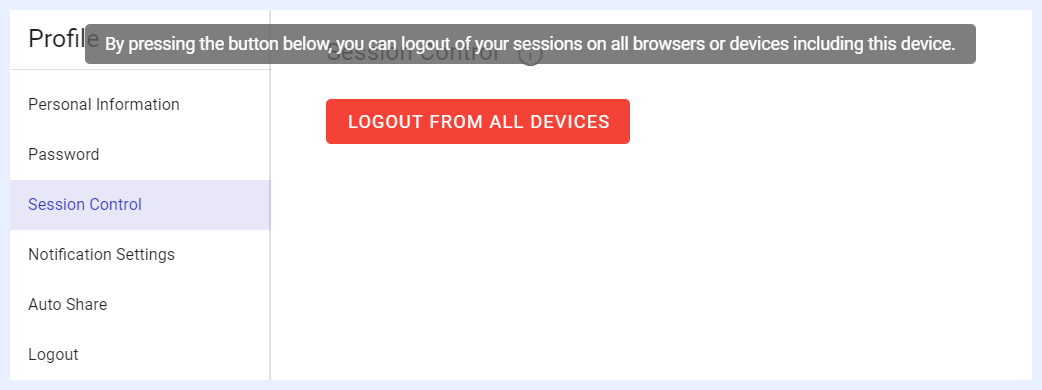
Session Control: The user can log out from all active sessions across devices.
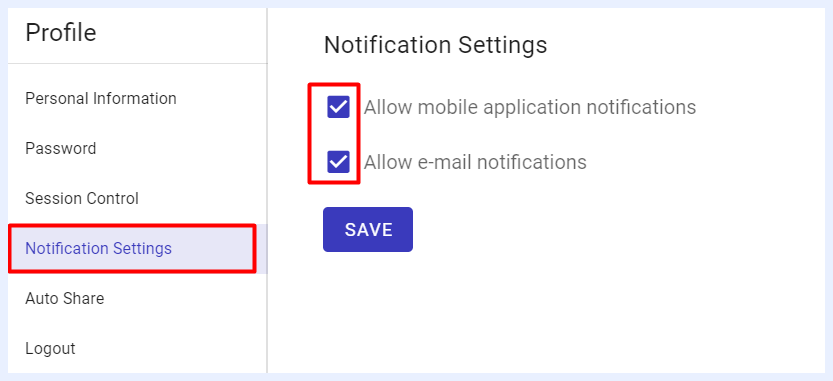
Notification Settings: By default, notifications are enabled when the user account is first created. The user can stop mobile app or email notifications by adjusting the checkboxes.
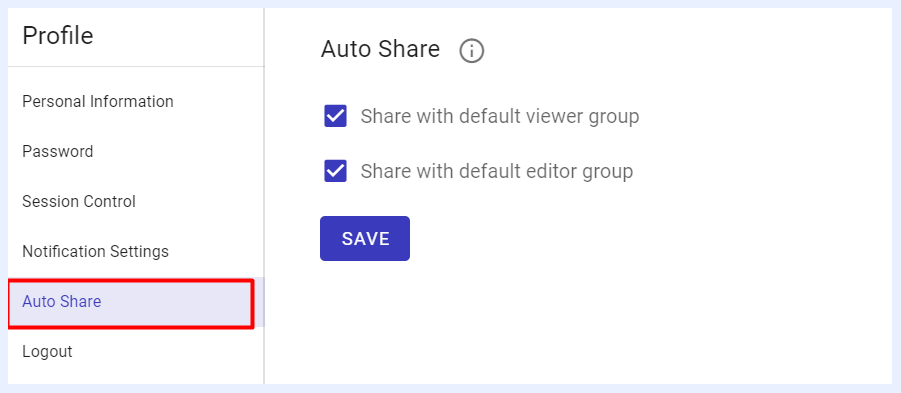
Auto Share: Preferences for sharing with default viewer and editor groups are auto-selected based on the settings configured by the Admin when the new user account was created. The user can modify these preferences as needed.
Logout: The user can log out through the profile section or the Navigation Sidebar Menu. It is recommended for users to sign out of TURBOARD when done working on the platform for the day, especially if the Session Timeout is not activated in Administration > Session Settings, for better security.
Contact Us, Support Center
- For further assistance, contact us at: support@turboard.com
- For product related inquiries, contact us at: contact@turboard.com
- For urgent support requests, call us at: +90 312 210 15 12