Managing Form Responses
The “Responses” tab in the FOR-S module is the core for post-collection data management. This pivotal area is where users of varying roles engage with form responses, offering an aggregated view of submissions and a suite of management tools.
Interface General Features
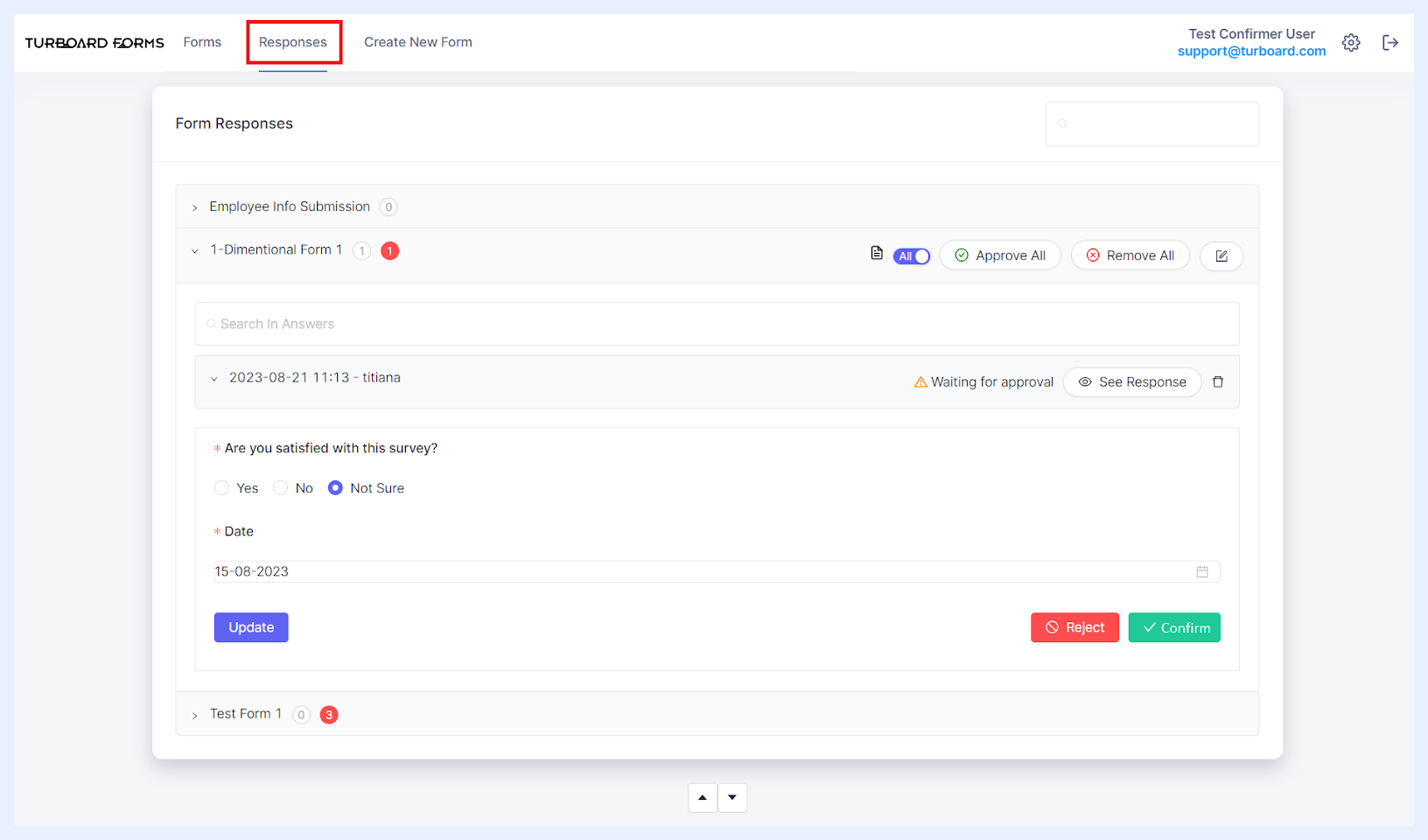
Forms Listing: The “Responses” tab organizes forms with their titles into a list view, arranged by the default order specified within the system “Settings” under the “Defaults” section.
General Display: Beside each form's name, the count of submitted responses is displayed inside a gray circle, offering a quick indicator of engagement.
Attention-Required Responses: For responses that require further action from the user, an additional count is displayed in a red circle next to the normal response count. This visual distinction draws attention to responses needing immediate attention or action. This system of response indicators ensures that all user types can quickly identify and prioritize tasks within the “Responses” tab, enhancing efficiency and response management.
- For Respondent Users: If a response is rejected by a Confirmer User, the red circle displays the number of rejected responses (e.g., a red circle with a '1' inside it). Hovering over this circle reveals a tooltip stating: “Your 1 response(s) were not accepted by the Administrator. You can correct your answer and resubmit”.
- For Confirmer Users: The red circle indicates the number of responses awaiting their review and approval. As an example, the accompanying tooltip might state: “There are 2 answers pending your approval”.
- For Admin Users: Similarly, rejected answers are highlighted in a red circle to assist Admins in identifying responses that may require deletion or further review.
Search Functionality: At the top-right of the tab, a search bar is available, enabling users to swiftly locate forms by their titles, streamlining the process of filtering through numerous forms.
Navigation and Pagination: For ease of use, navigation arrows are situated at the bottom of the page, allowing users to move through the list of forms, especially when the quantity surpasses the set pagination limits.
Expandable Form Responses: For forms with answer submissions, adjacent to each form title, an arrow icon beckons users to unveil additional details. Clicking on this arrow expands the form's section to show a sub-list of submissions, each entry representing an individual response. This feature provides immediate access to various actions and tools that can be applied to the form as a whole or to specific responses.
The responses are organized in reverse chronological order, showcasing the most recent submissions first. Each response entry is labeled with the submission's date and time, as well as the respondent's username.
To examine each response, users have the option to either directly click on a response or use the See Response button. This action reveals the complete set of answered fields, offering a comprehensive breakdown for meticulous review or further action.
Note
Forms that have no responses submitted yet are visually indicated by being distinctly faded in gray and presented as unclickable within the list. This visual cue indicates to users that these forms are awaiting their input and remain active for submission.
Responses Management According to User Types
Selecting a form from the list activates a contextual menu of functionalities, tailored to the user's type and assigned permissions. These features are meticulously designed to empower users with the ability to manage responses in a manner consistent with their role within the system.
1. Respondent Users:
Upon accessing the “Responses” tab, Respondent users will encounter a list of all active forms – those which have not yet expired – that are specifically assigned to them, as well as those that are publicly available. Forms not assigned to them or those that have expired will be concealed from their view.
The forms for which the respondent has already submitted one or more responses – where the multiple response option is enabled—are designed to be expandable, granting the user the capability to review their submissions via the “See Response” button or by clicking on the form response row.
Each form features an “Export to Excel” icon, located at the top-right corner, enabling users to download a comprehensive record of their responses into an Excel document.
For forms that allow multiple submissions, an “Answer” icon is prominently displayed next to the export feature. By selecting this icon, users can swiftly re-enter the answer window to submit additional responses as necessary.
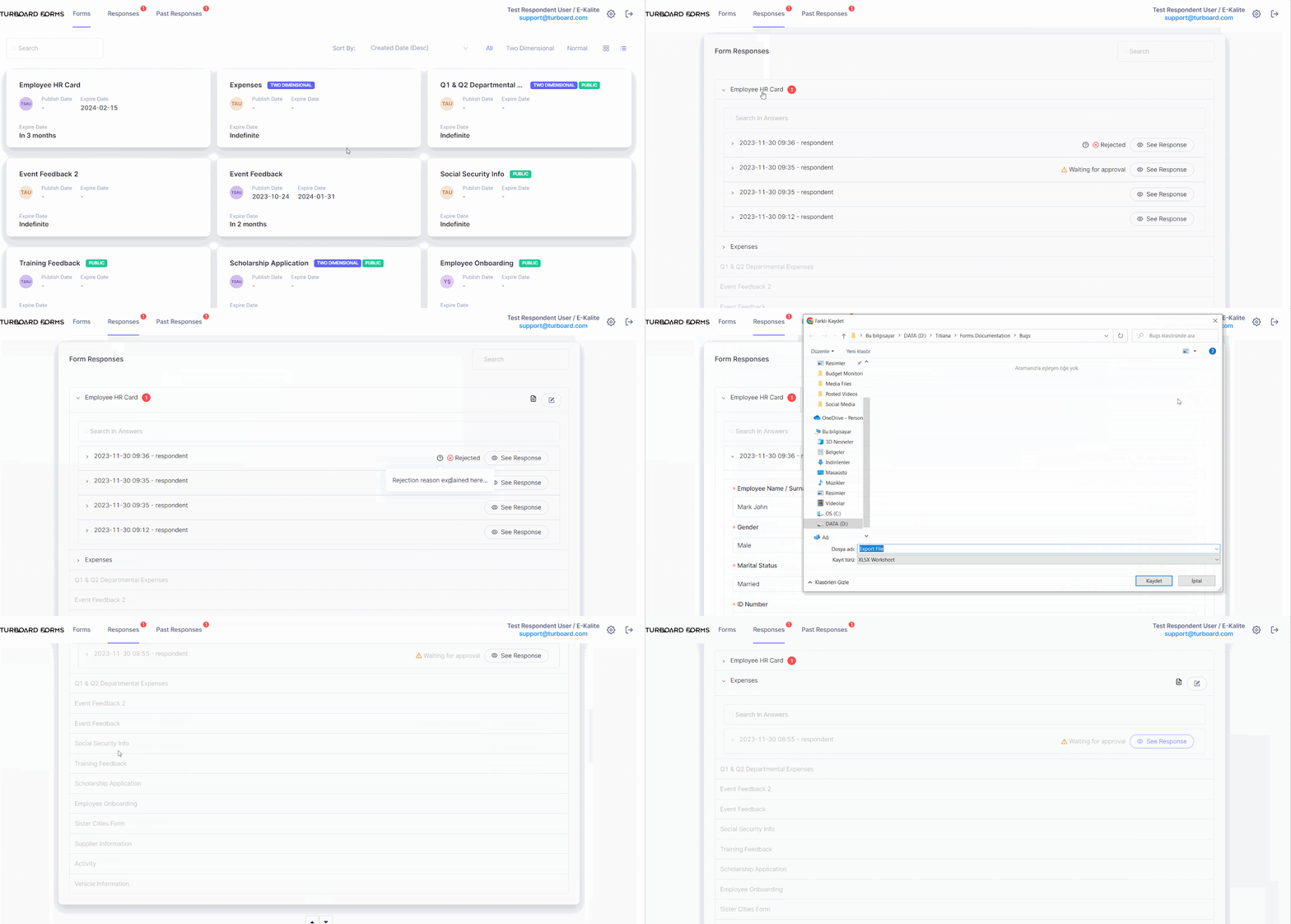 Options & Features in “Responses” Tab for Respondent Users
Note
Forms that have expired but were assigned to a respondent user and have received submissions from them are still accessible for review in the “Past Responses” tab.
2. Confirmer Users:
For Confirmer Users, the “Responses” tab provides a specialized interface for overseeing and taking action on form submissions that require their approval. This section is specifically designed to align with their role in the data validation process.
Upon accessing the “Responses” tab, Confirmer Users will encounter a list of forms containing responses awaiting their review and approval. These typically include submissions from Respondent Users assigned to them for confirmation.
Responses that require the Confirmer User’s attention are highlighted with a red circle, displaying the count of such responses for easy and quick identification.
Responses Review Options
Confirmer Users can expand each form to access individual responses. The available management options for these submissions include:
- View Response: By clicking the
See Responsebutton next to each response, Confirmer Users can view the detailed answers provided. - Approve: This option allows Confirmer Users to approve a response, indicating its adherence to required standards or criteria.
- Reject with Feedback: If a response fails to meet the necessary requirements, Confirmer Users can reject it and provide a reason for this decision. This feedback will be displayed as a tooltip (marked with a “?” icon) for the relevant Respondent User and the Admin users upon reviewing their response.
- Delete Response: Confirmer Users have the ability to completely remove a response from the system if necessary.
- Withdraw Approval: This function permits Confirmer Users to retract approval of a response, in case a reassessment is needed.
- Export to Excel: To facilitate responses review and audit outside the FOR-S platform, Confirmer Users can export the responses into an Excel file. This feature, located at the top-right corner of each form, allows for the efficient handling and sharing of collected data.
Response Bulk Management Tools
At the form level, a switch button enables Confirmer Users to filter responses based on their status, choosing to view either “All Responses” or only those “Waiting for Approval”.
To facilitate efficient handling of responses, Confirmer Users can utilize options such as Approve All or Remove All, allowing for quick bulk action within a form.
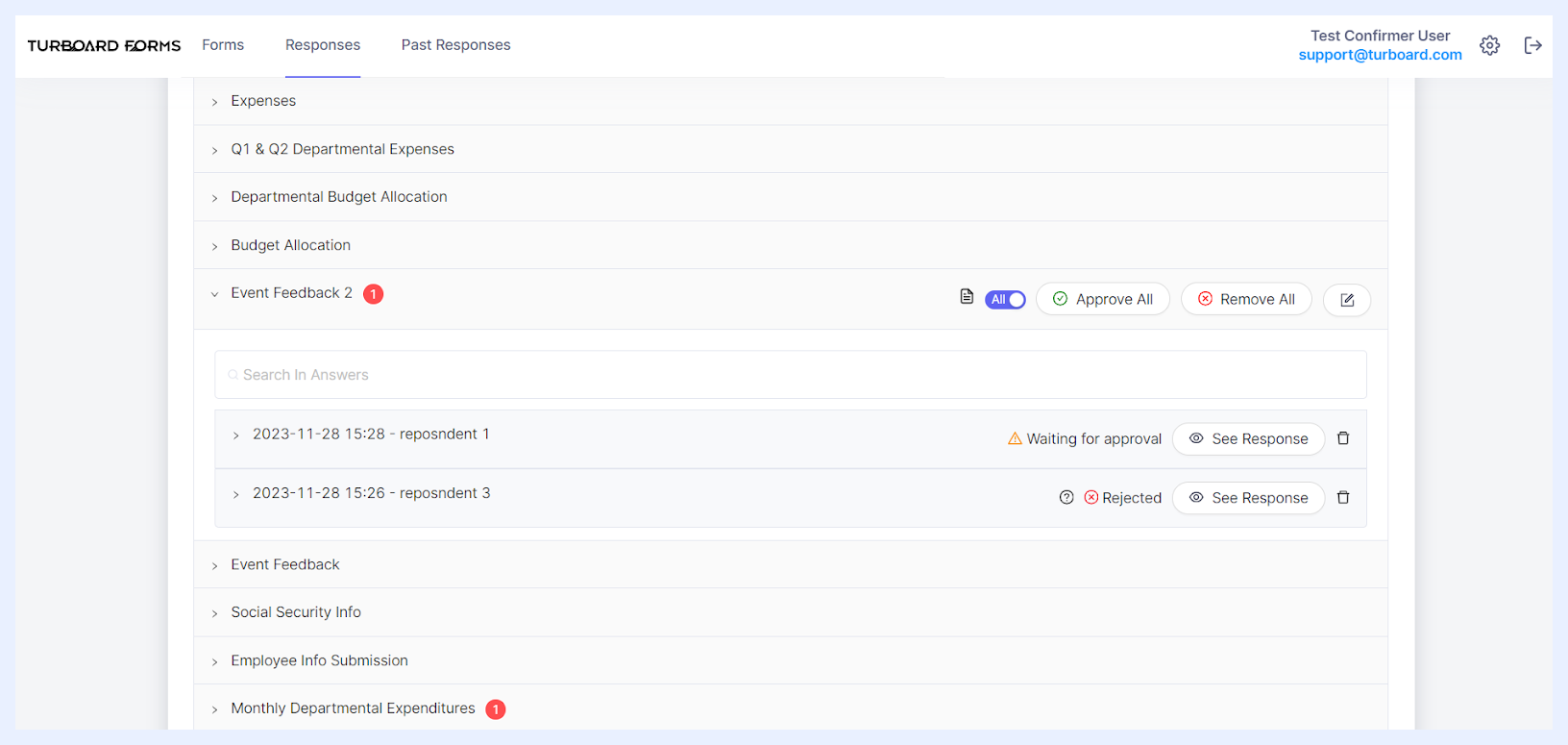 Options & Features in “Responses” Tab for Confirmer Users
3. Admin Users:
Admin Users have unrestricted access to all form responses within the “Responses” tab, regardless of the form's status or user assignments. This universal visibility ensures that Admin Users can maintain a holistic view of data collection across the platform.
The available management options for Admin users include:
- View Response: Admin Users can review the details of any submission by clicking the
See Responsebutton available next to each response. This action provides a detailed view of the submitted answers for thorough examination. - Delete Response: Reflecting their elevated system privileges, Admin Users can delete any response. This capability is crucial for maintaining data quality and removing any irrelevant or incorrect submissions.
- Export to Excel: To facilitate data analysis or reporting outside the FOR-S platform, Admin Users can export the responses into an Excel file. This feature, located at the top-right corner of each form, allows for the efficient handling and sharing of collected data.
Admin Users do not have the Approve/Reject functionalities, as these tasks are typically within the purview of Confirmer Users. Instead, their role focuses on broader data management and system maintenance, ensuring that all aspects of the form responses are in line with the organization's data strategy and compliance requirements.
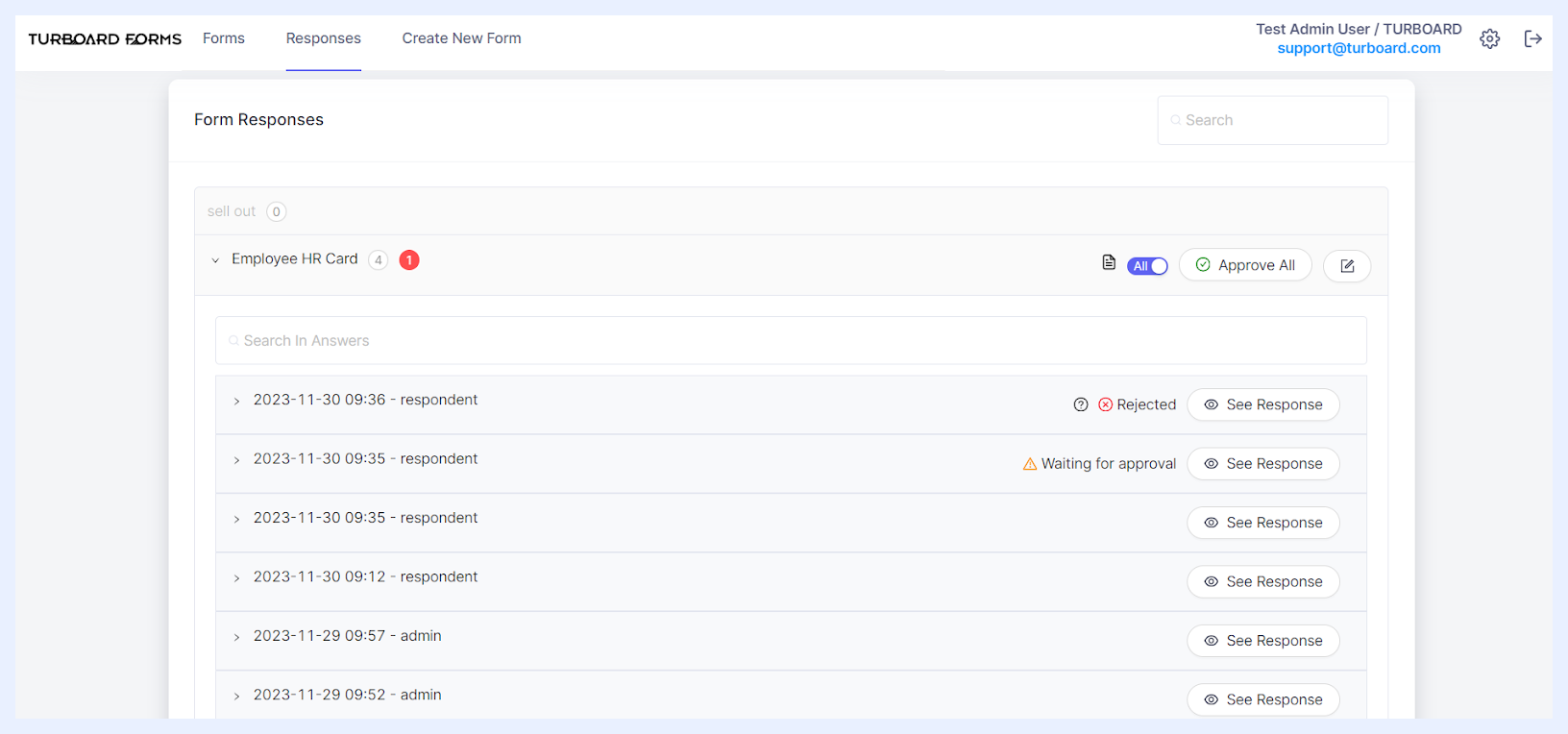 Options & Features in “Responses” Tab for Admin Users