Replicating Showcases
In TURBOARD, users can export (through “Share” option) any TURBOARD element, starting from views, dashlets, dashboards and up to a whole showcase into an external file (a “.tur” custom file format specific to TURBOARD application) compressed inside a (.zip) folder.
This allows users to replicate such elements – instead of creating them from scratch, applying their analysis to another data source, and/or copy some elements into another TURBOARD environment – through importing the same file into TURBOARD again.
A designer user may sometimes need to share similar showcases that analyze similar data but from different data sources, i.e. provide the same type of analysis and visualizations on the same type of data but for data that is available on another data source or another database.
Instead of creating a similar showcase manually and preparing its dashlets and dashboards from newly created datasets in the other data source, TURBOARD allows replicating the entire showcase with its design and structure from a master showcase and applying its analysis on another similar dataset available on another data source.
The replicating process can be easily applied and the new showcase with all its related entities (views, dashlets, and dashboards) will be automatically created in TURBOARD within a few seconds.
The feature of replicating a showcase can be used for different use cases such as:
- You may need to analyze historical data and compare it with the latest data, but if your historical data is stored in another data source or database, the showcase can be duplicated so that it works from the new database.
- You may need to share the same type of analysis and visualization with different customers, each customer data has the same data tables and structure but is stored on a different database.
One condition is required to complete the replication successfully: the data tables in the new data source must have the same name and structure (fields) for the elements/entities that are connected to the master showcase.
How to create the same showcase from another data source?
1 Prepare the showcase that you want to replicate in TURBOARD following the below steps:
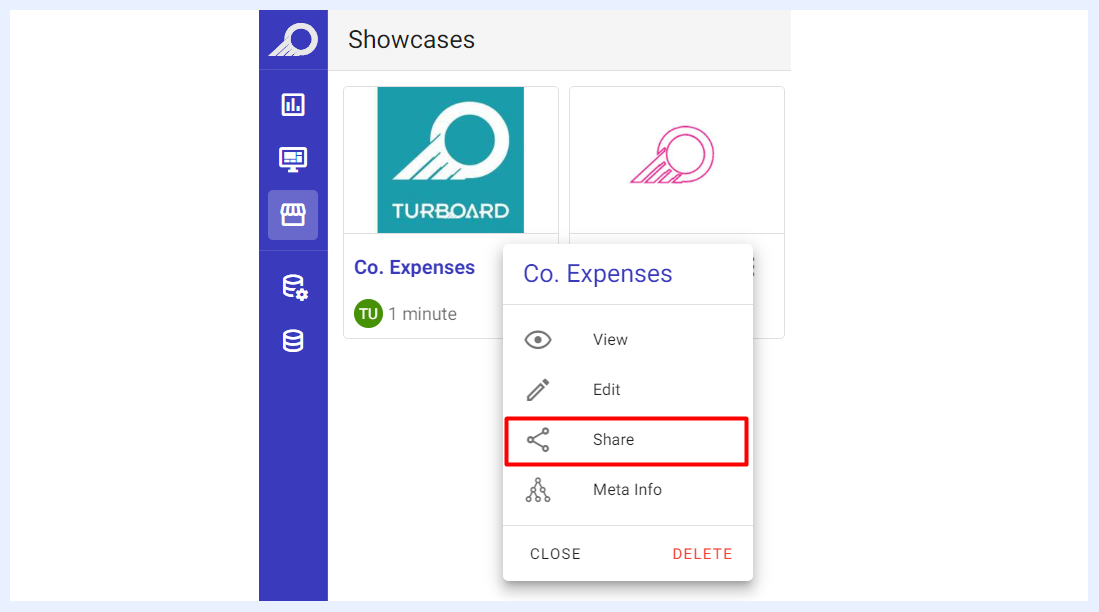
Go to “Showcases” view/listing page > click on the “Showcase” burger menu > click on the Share option.
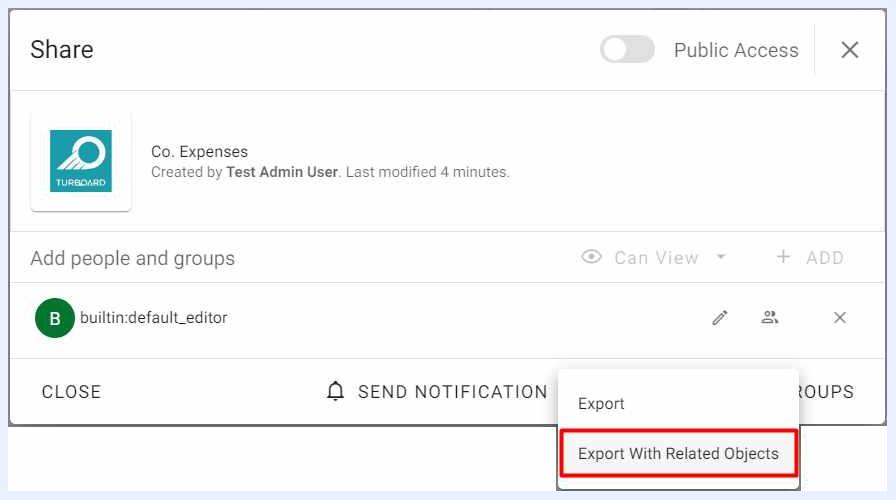
In the “Share” overlay window that opens, click the “Export” additional menu and choose Export With Related Objects option.
The showcase and all its elements and objects will be downloaded to your computer device as a compressed folder (.zip file).
2 Create the new showcase by importing its elements from the exported file of the master showcase following the steps below:
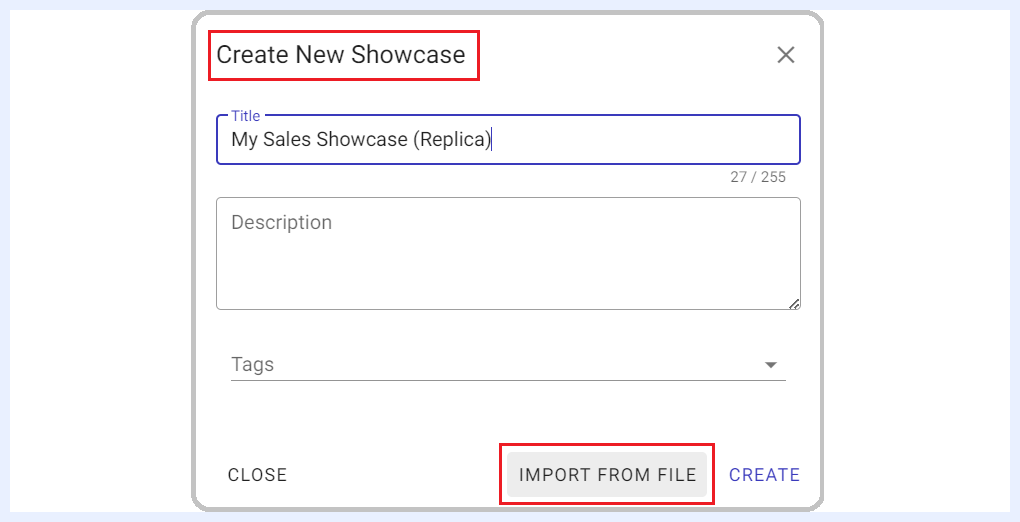
- Go to
Showcases> click+ Create New Showcase. - Give a proper name to the showcase in the overlay window that opens. Optionally, you may add a description to the showcase and tags.
- Click
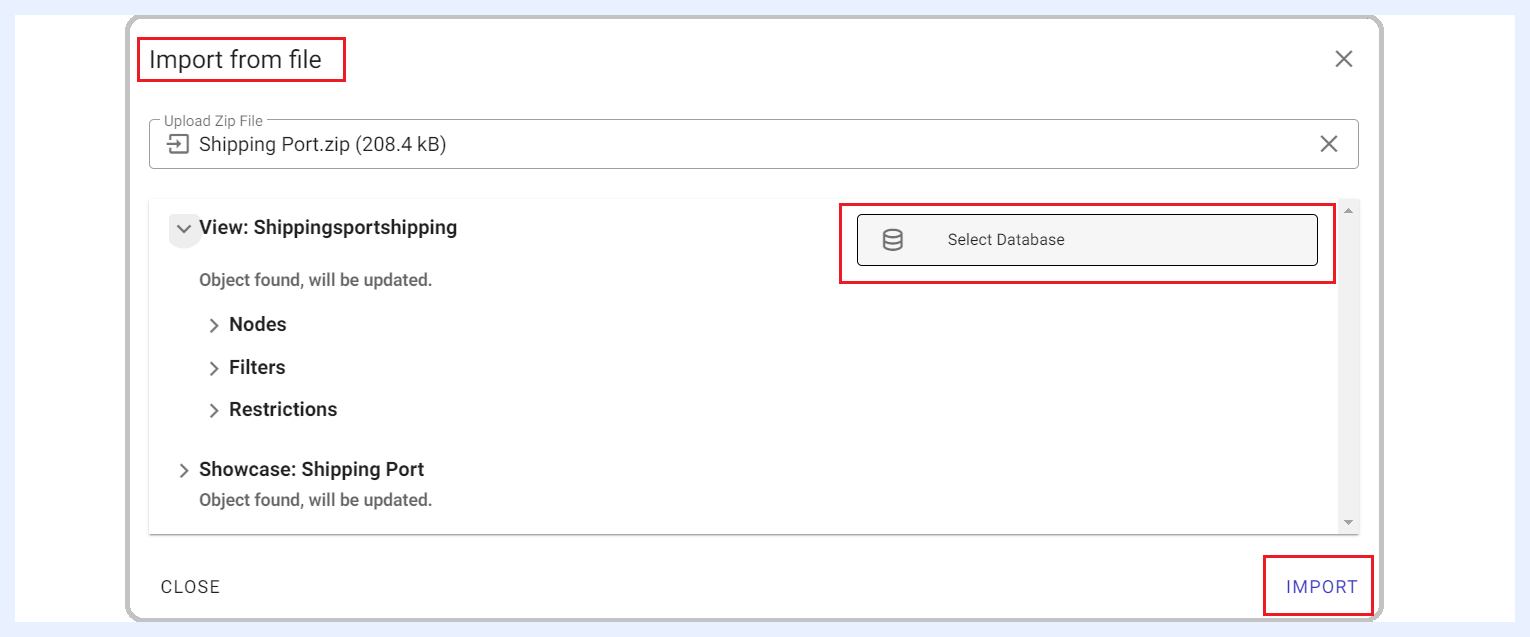
IMPORT FROM FILEoption and upload the .zip folder that you exported from your computer device by clicking Upload Zip File in the “Import from File” overlay window that opens.
TURBOARD will automatically detect the tables and the data structure from the uploaded file.
- Click
Select Databasebutton for the relevant view/s to determine the required data source that you want to link the replicated showcase to. - Click
IMPORTbutton. The new showcase will be created and linked to the selected database/s.