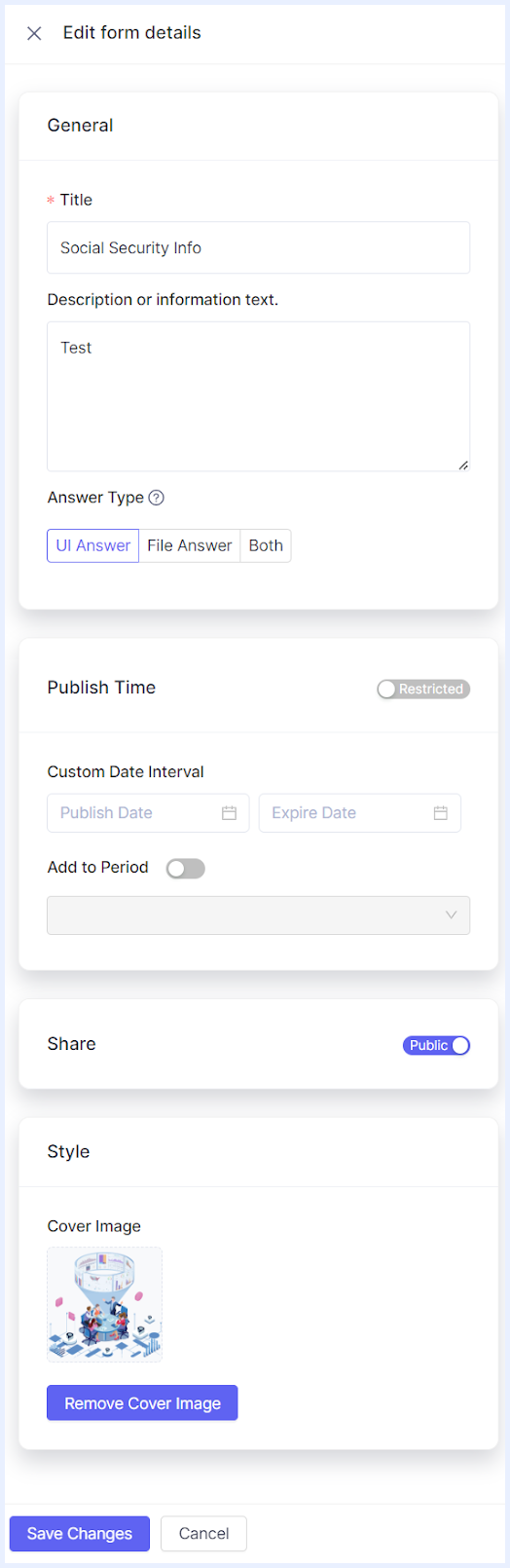
UI General Features
General Features of Interface Navigation
Upon logging into TURBOARD Forms, users are welcomed to a well-arranged start page that showcases three primary tabs. To its complement, a logo resides at the top-left, serving as a quick link back to the start page when clicked. Moreover, the “Settings” icon, positioned at the top-right corner, provides direct access to key functionalities. Next to it, the “Logout” icon ensures a secure exit from the module.
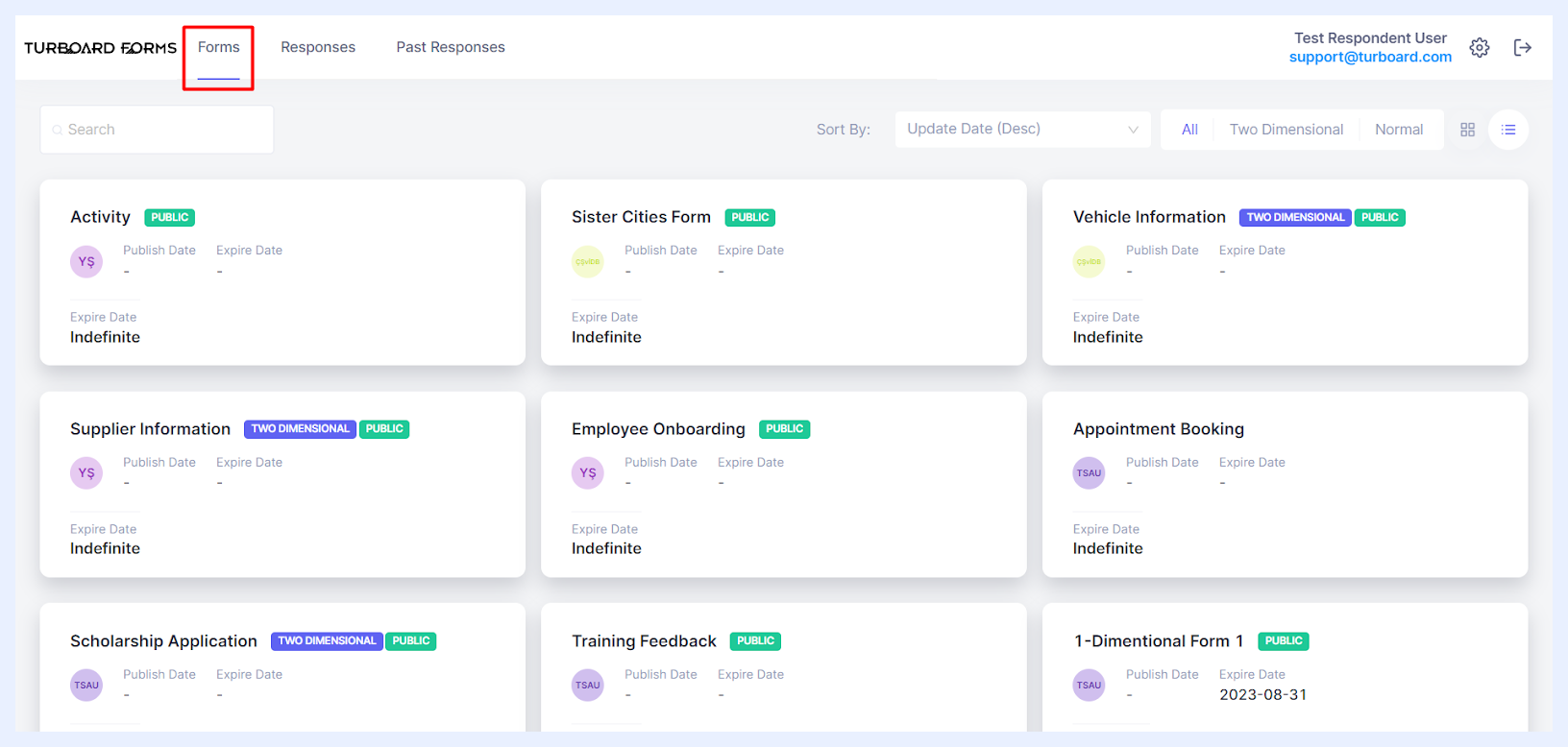
Forms Tab
Serving as the default screen, it showcases all the forms created in the system according to user roles and permissions.
For example, Admin users can see every form within the system and have the ability to edit or delete them, ensuring all form-related activities can be managed as required. Other users can view and answer the forms allocated to them and any public forms available for response.
At the top of the listed forms, users will find:
- Search Bar: to quickly locate specific forms by entering keywords.
- Sort By Options: to arrange forms based on criteria like creation date, update date, and/or form name.
- Form Type Filters: to choose to view “All” forms, or One Dimensional (“Normal”) or “Two Dimensional” forms.
- Form Cards View Options: to personalize the viewing experience by toggling between “Detail Card” and “Image Card” views, allowing for a customized interface interaction.
These tools ensure that users can efficiently navigate and manage their forms, regardless of the number present.
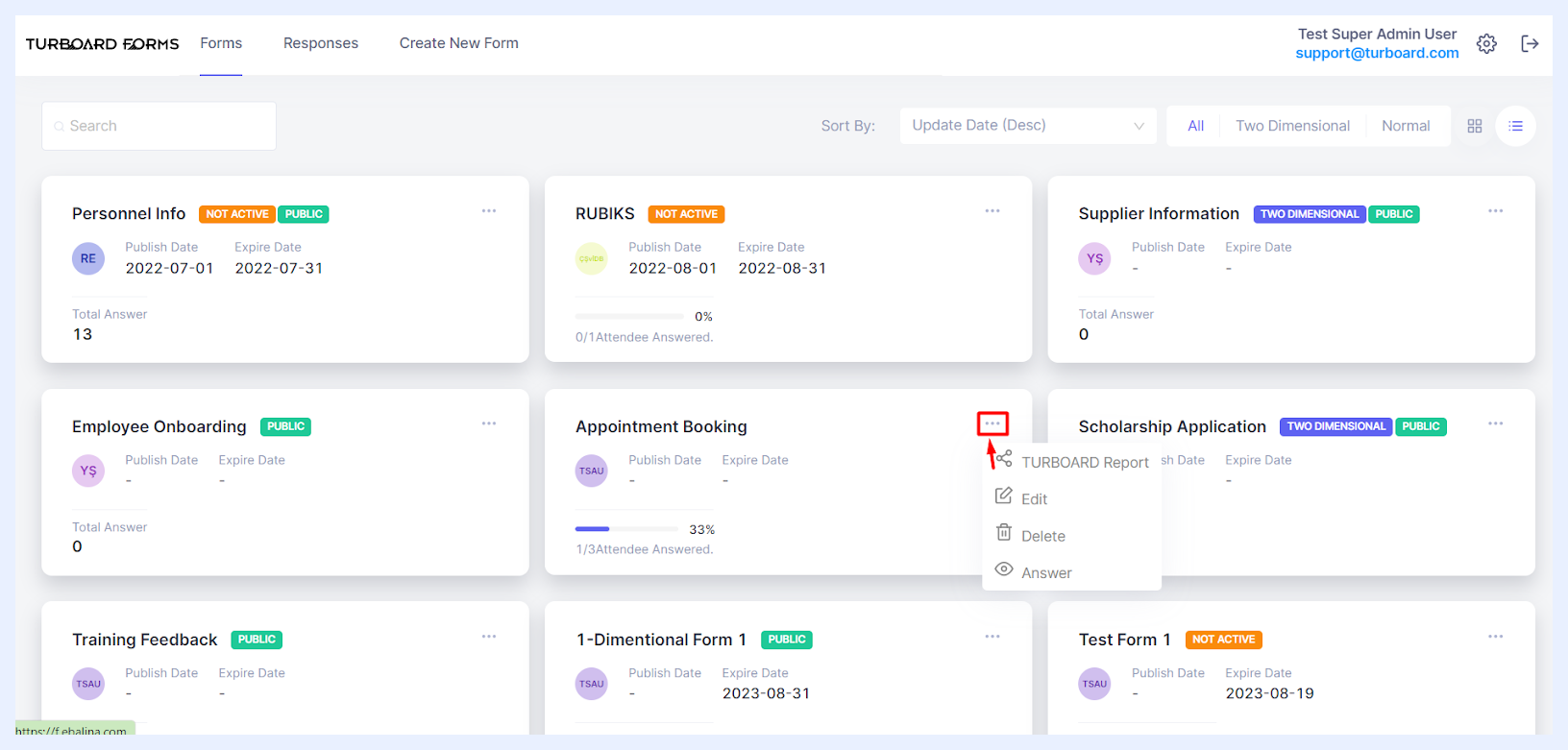 Forms Options for Admin Users
Responses Tab
This tab, accessible to all users, displays a summary of submissions from active forms. Respondent users can view their previous answers in a non-editable format. Confirmer users, on the other hand, have the ability to see responses from forms assigned to them, including public ones, and can approve or reject specific answers assigned to them. Meanwhile, Admin users have the capability to view and manage all responses, encompassing the task of assigning confirmer roles and even deleting responses.
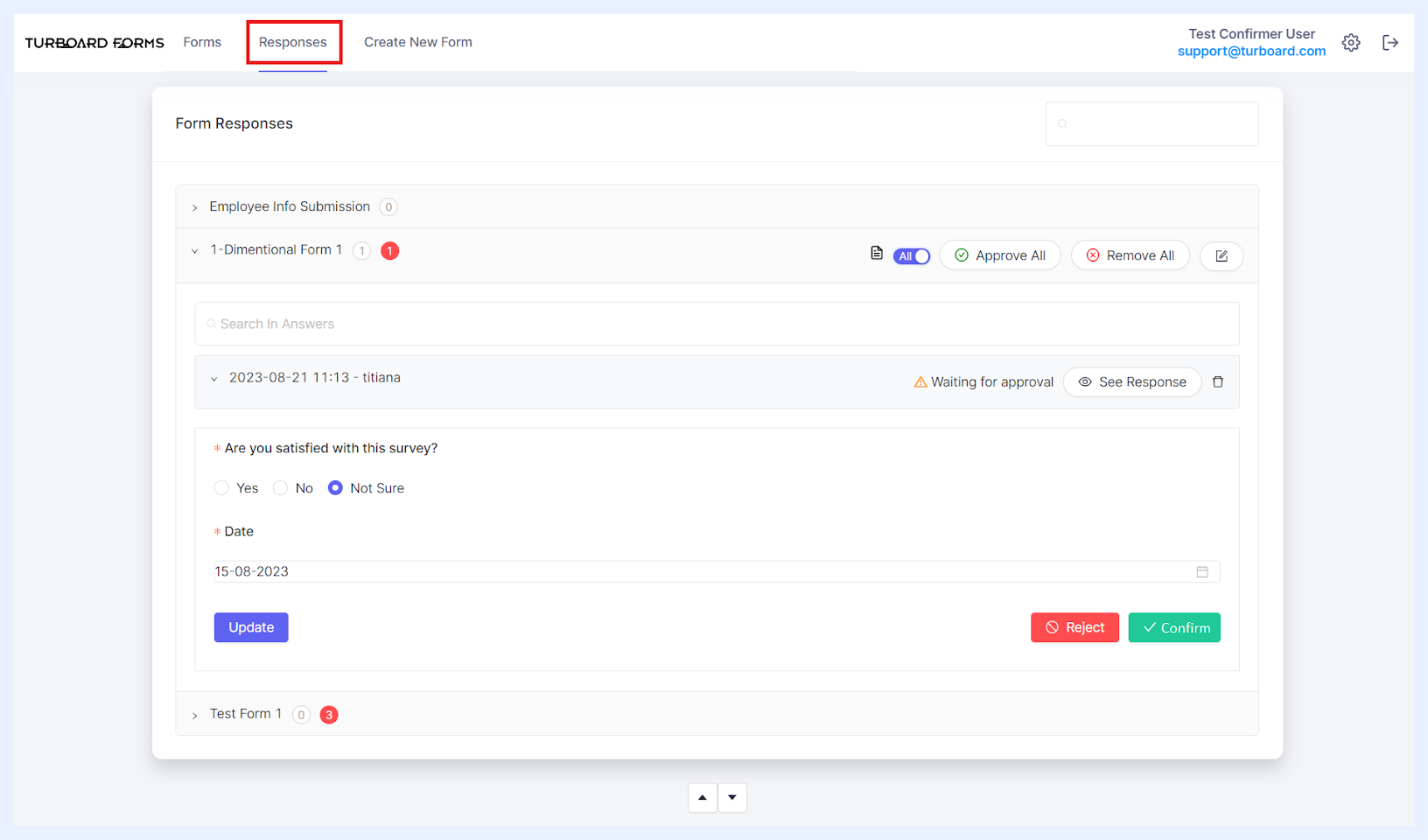 Responses Options for Confirmer Users
Past Responses Tab
Available primarily to Respondent users, this tab offers a summary of submissions from expired forms. Respondent users can review their past answers in a view-only mode. Confirmer users can also access all responses from forms they're linked with, including public forms, and have the authority to approve or reject specific answers given to them.
Create New Form Tab
As creating forms and publishing them are exclusive to Admin users, this tab remains hidden for others, streamlining the interface.
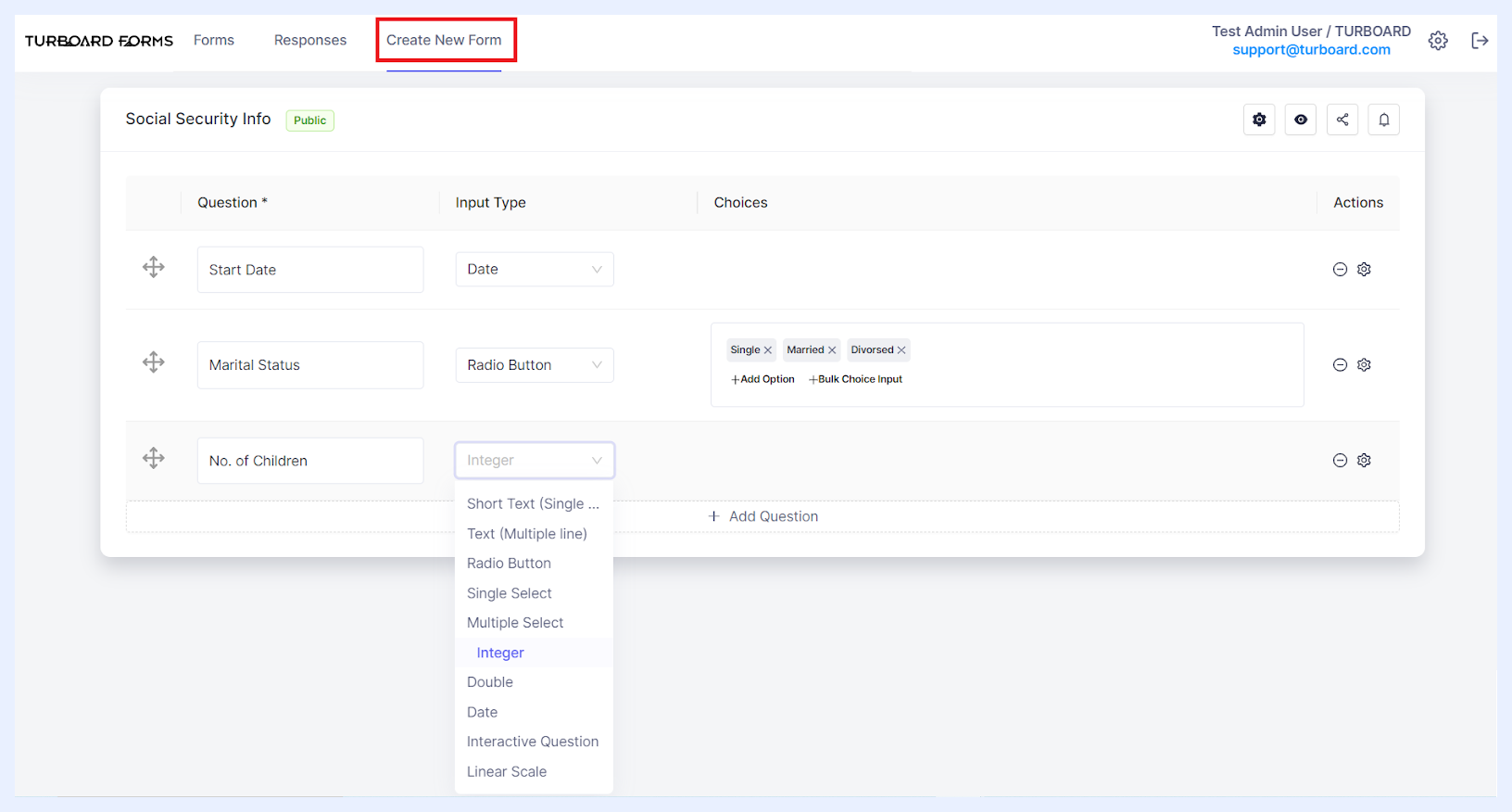
With access to this tab, Admin users are offered a dual-layered customization experience. They can tailor forms at both the individual field level and the broader overall form level, ensuring a meticulous and well-rounded design process.
Field-Level Customizations
At the field level, admins can select specific input types, such as radio buttons, multi-line text, or interactive drop-down lists. They have the flexibility to set input limits to cap the number of characters, mark fields as either mandatory or optional, and add user-friendly tooltips or placeholders. Furthermore, they can set conditions to restrict certain answers, thereby enhancing the quality of responses.
Form-Level Adjustments
At the overall form level, admins possess a variety of options to optimize the user experience. These options include setting a dedicated publish date, incorporating post-answer validations, and determining whether multiple submissions from a single user are allowed, among other advanced configurations.